Highlights
- Updated CSME to 16.1.40.2765v3 Corporate.
- Update Microcode to 0x43B.
- Added support for Framework Laptop 13 Pro features - Enabled compatibility for the haptic touchpad, touch panel, and 74W battery.
- Fixed an issue where the system was unable to boot from partially locked self-encrypting drives (SEDs)
- Fixed an issue where the Battery Extender status was reported incorrectly following a reboot, hibernation, or shutdown after the timer had expired.
- Enhanced the Power On AC behavior, allowing the feature to work correctly without requiring the system to boot into the Operating System at least once for initialization.
- Security Fixed: CVE-2025-32008, CVE-2025-27708, CVE-2025-20080, CVE-2024-24853, CVE-2025-31648.
Please note that if you update to 3.06 or higher, you will not be able to downgrade to version lower than 3.06, as it will cause left side ports to stop functioning correctly.
You can check your current BIOS version following the steps here to determine if you are on the latest release.
After the beta release, we will monitor community feedback, and publish this release to our stable release channel after approximately one week if no major issues are reported.
Subscribing to release notifications
If you want to subscribe to new release notifications you can now opt in through this link to receive an email when we release a new BIOS or driver update for your Framework Laptop.
Downloads
Windows
| Download Link | SHA256 |
|---|---|
| Framework_Laptop_13_12th_Gen_Intel_Core_BIOS__3.20.exe | 3244FEA111D29103F2E0F95BDB50FC6F567A9441FEBB46C49361FA06B1E51F78 |
Instructions for Windows Installer:
- Run the .exe.
- Click yes to reboot.
- Wait for the firmware progress bar to complete, and then the system will reboot.
- If you are updating a system in standalone mode, please pay careful attention to the standalone update process below.
Please note that you must update with a charger attached.
Please note that the windows update does not support updating retimer firmware. There is not a functional impact to port functionality if you do not choose to update your retimer firmware.
Windows retimer updates
Updating the retimer will update to a signed retimer firmware that is Thunderbolt certified. There is no change to port functionality if you do not choose to update your retimer firmware. To perform the retimer update, you will need to follow the instructions twice using the following executable files, as there are two sets of retimers on the system, and each pair needs to be updated separately.
| Download Link | SHA256 |
|---|---|
| Framework_Laptop_13_12th_Gen_Intel_Core_Retimer_port_01_310.exe | f4a9315376eb73c4c6c8e380e0540afc5adef2da5b787443188befebc50e4f51 |
| Framework_Laptop_13_12th_Gen_Intel_Core_Retimer_port_23_310.exe | 4c6c78c552d016b69009025beb0540c582a03bba3a581afa42320403b6584801 |
Retimer update instructions.
- Update the BIOS first.
- Boot into Windows after BIOS update.
- Run the .exe and wait for firmware update tool to stage the update.

- After initialization, the system will restart and and update the retimer firmware.
- Repeat step 3 after rebooting to update the second set of retimers.
Please note that you must update with a charger attached.
Linux/LVFS
Please note that for this platform LVFS will not update the CSME firmware. so we only recommend updating using the EFI updater. This is a limitation of LVFS which does not ship the binary blobs from Intel necessary to update the CSME.
Updating via LVFS is available in the testing channel during the beta period.
You can enable updates from testing by running
fwupdmgr enable-remote lvfs-testing
Please note that you must update with a charger attached, then run:
fwupdmgr refresh --force
then
fwupdmgr get-updates
then
fwupdmgr update
Please note that you must update with a charger attached.
LVFS may not update if the battery is 100% charged. LVFS uses the battery status to determine if it is safe to apply updates. However if our battery is at 100% and the charger is off, we set the battery charging status to false. In this case you can discharge your battery a few percent, then plug in AC again and run fwupdmgr update.
Linux/Other/UEFI Shell update
Please note, you need to update to 3.05 or later to update using EFI, as this is needed to support capsule on disk.
| Download Link | SHA256 |
|---|---|
| Framework_Laptop_13_12th_Gen_Intel_Core_BIOS__3.20_EFI.zip | 88CD52B4BD6440E01B6D9E158A0C5303FE19392159DF3AEC466038F4ECE96D3 |
We have rewritten the update process for EFI. This new version will stage the bios and retimer updates onto your internal SSD and run them all together in sequence. This is to avoid issues with usb devices disconnecting and disappearing during subsequent updates during the update process, which would cause partial updates to be applied.
Troubleshooting:
If you experience ports not working after your update. Please shutdown, unplug all power sources, wait 90 seconds, and then power on again.
Note that if you use the EFI shell update with Windows, you should suspend Bitlocker if enabled before updating using the EFI updater.
Instructions for EFI shell update:
- Extract contents of zip folder to a FAT32 formatted USB drive. Cleanly unmount the drive before physically removing it, otherwise the BIOS update may not function correctly.
- Boot your system while pressing F12 and boot from the thumb drive.
- Let startup.nsh run automatically.
- Follow the instructions to install the update.
Updating retimers
After the bios update completes, press F12 after restarting to again enter the boot menu, and boot from your thumb drive. Let startup.nsh run again to confirm or update your retimer firmware. If retimers need updating, the update will be staged to perform an update on both retimers.
If doing a standalone update, the display output will not work during the retimer update. Please note that retimer updates take 2 minutes to complete. So please wait at least 5 minutes before attempting to power off or reset the device.
Updating a Mainboard outside of a laptop
This release supports standalone updates without a battery attached only when updating using the EFI shell method only. After rebooting, please follow the onscreen instructions to update your BIOS when in standalone mode, which will require moving the power source between both sides of the Mainboard to allow PD firmware to update correctly.
Please note that the power and display output must be connected to the same side during standalone updates. Failure to do this may result in no display output during the update process.
We recommend the following update flow for standalone updates:
Part 1
Ensure that standalone operation is enabled in the bios advanced setup menu.
Display connected to upper left port.
Power connected to the lower left port.
Run the updater from EFI shell. Please follow the “Instructions for EFI shell update” to run the updater.
Select the EFI USB Boot Device.

The Updater will update the PD controller from right side. Press any key to continue updating.

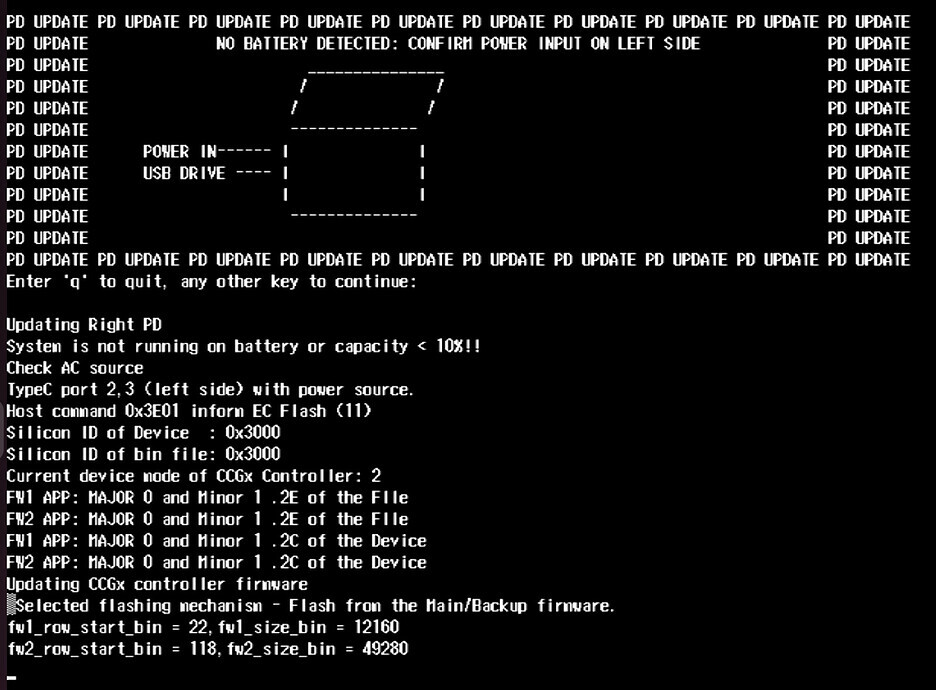
Part 2
Plug the AC to the left side, then boot to EFI updater. The Updater will update the PD controller from left side. Press any key to continue updating.


After PD updates, it will reboot automatically, then start the BIOS capsule update.
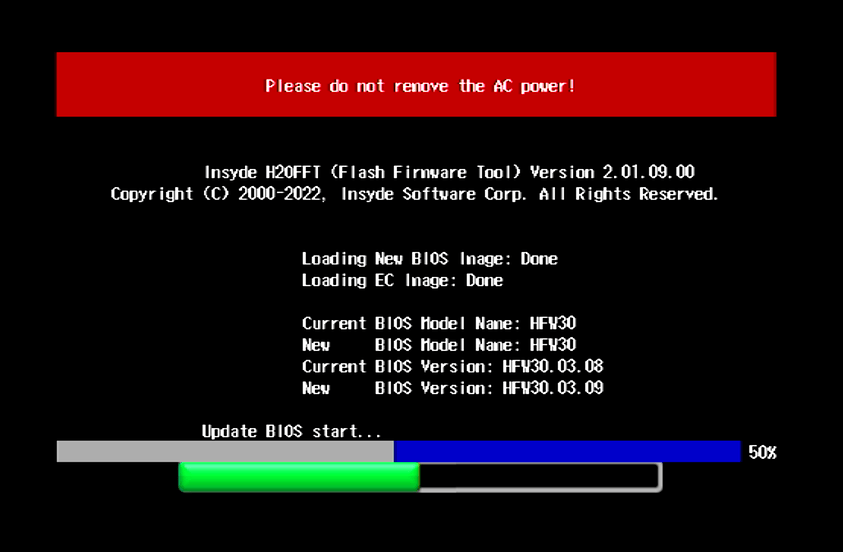
Then, the EC will update after BIOS section finishes.

After this, the system will reboot. Please press F12, and select your thumb drive as the boot device. And run the update again to update retimers if necessary.
If the retimer update is finished, the system will reboot automatically. Please press F12 again, and select your thumb drive as the boot device. You will see the screen that shows all the firmware versions.
If the retimer update is not needed, you will see the screen that shows all the firmware versions.

Security Fixes
| CVE | Note | Score (CVSS Version 3.x) |
|---|---|---|
| CVE-2025-32008 | Out-of-bounds write in the firmware for the Intel(R) AMT and Intel(R) Standard Manageability within Ring 3: User Applications may allow a denial of service. Network adversary with an unauthenticated user combined with a low complexity attack may enable denial of service. This result may potentially occur via network access when attack requirements are not present without special internal knowledge and requires no user interaction. The potential vulnerability may impact the confidentiality (none), integrity (none) and availability (high) of the vulnerable system, resulting in subsequent system confidentiality (none), integrity (none) and availability (low) impacts. | 8.6 |
| CVE-2024-24853 | Incorrect behavior order in transition between executive monitor and SMI transfer monitor (STM) in some Intel® Processor may allow a privileged user to potentially enable escalation of privilege via local access. | 7.2 |
| CVE-2025-20080 | Null pointer dereference in the firmware for some Intel(R) AMT and Intel(R) Standard Manageability within Ring 0: Kernel may allow a denial of service. Network adversary with an unauthenticated user combined with a high complexity attack may enable denial of service. This result may potentially occur via network access when attack requirements are present without special internal knowledge and requires no user interaction. The potential vulnerability may impact the confidentiality (none), integrity (none) and availability (high) of the vulnerable system, resulting in subsequent system confidentiality (none), integrity (none) and availability (none) impacts. | 6.8 |
| CVE-2025-27708 | Out-of-bounds read in the firmware for some Intel(R) Converged Security and Management Engine (CSME) Firmware (FW) within Ring 0: Kernel may allow an information disclosure. System software adversary with a privileged user combined with a low complexity attack may enable data exposure. This result may potentially occur via local access when attack requirements are present without special internal knowledge and requires no user interaction. The potential vulnerability may impact the confidentiality (high), integrity (none) and availability (none) of the vulnerable system, resulting in subsequent system confidentiality (none), integrity (none) and availability (none) impacts. | 4.1 |
| CVE-2025-31648 | Improper handling of values in the microcode flow for some Intel(R) Processor Family may allow an escalation of privilege. Startup code and smm adversary with a privileged user combined with a high complexity attack may enable escalation of privilege. This result may potentially occur via local access when attack requirements are present with special internal knowledge and requires no user interaction. The potential vulnerability may impact the confidentiality (low), integrity (low) and availability (none) of the vulnerable system, resulting in subsequent system confidentiality (low), integrity (low) and availability (none) impacts. | 3.9 |
Enhancements
- Updated CSME to 16.1.40.2765v3 Corporate.
- Update Microcode to 0x43B.
- Added support for Framework Laptop 13 Pro features - Enabled compatibility for the haptic touchpad, touch panel, and 74W battery.
- Enhanced the Power On AC behavior, allowing the feature to work correctly without requiring the system to boot into the Operating System at least once for initialization.
Fixes
- Fixed an issue where the system was unable to boot from partially locked self-encrypting drives (SEDs)
- Fixed an issue where the Battery Extender status was reported incorrectly following a reboot, hibernation, or shutdown after the timer had expired.
- Security Fixed: CVE-2025-32008, CVE-2025-27708, CVE-2025-20080, CVE-2024-24853, CVE-2025-31648.
Component Versions
This BIOS update is a bundle of updates to multiple embedded components in the system.
Not all of them use the same version number.
| BIOS | 3.20 | 3.19 | |
|---|---|---|---|
| SI | c.0.75.10 | c.0.75.10 | Same |
| TXT | 1.18.13.0 | 1.18.13.0 | Same |
| Intel CSME | 16.1.40.2765v3 | 16.1.35.2557 | Updated |
| Microcode | 43B | 437 | Updated |
| GOP | 21.0.1061 | 21.0.1061 | Same |
| EC | ec_320_e12d9a6 | ec_319_a3deac9 | Updated |
| PD | 0.1.2E | 0.1.2E | Same |
Known Issues
- There are two progress bars when updating the bios using the EFI update method.
- No display output during the retimer update in standalone mode.