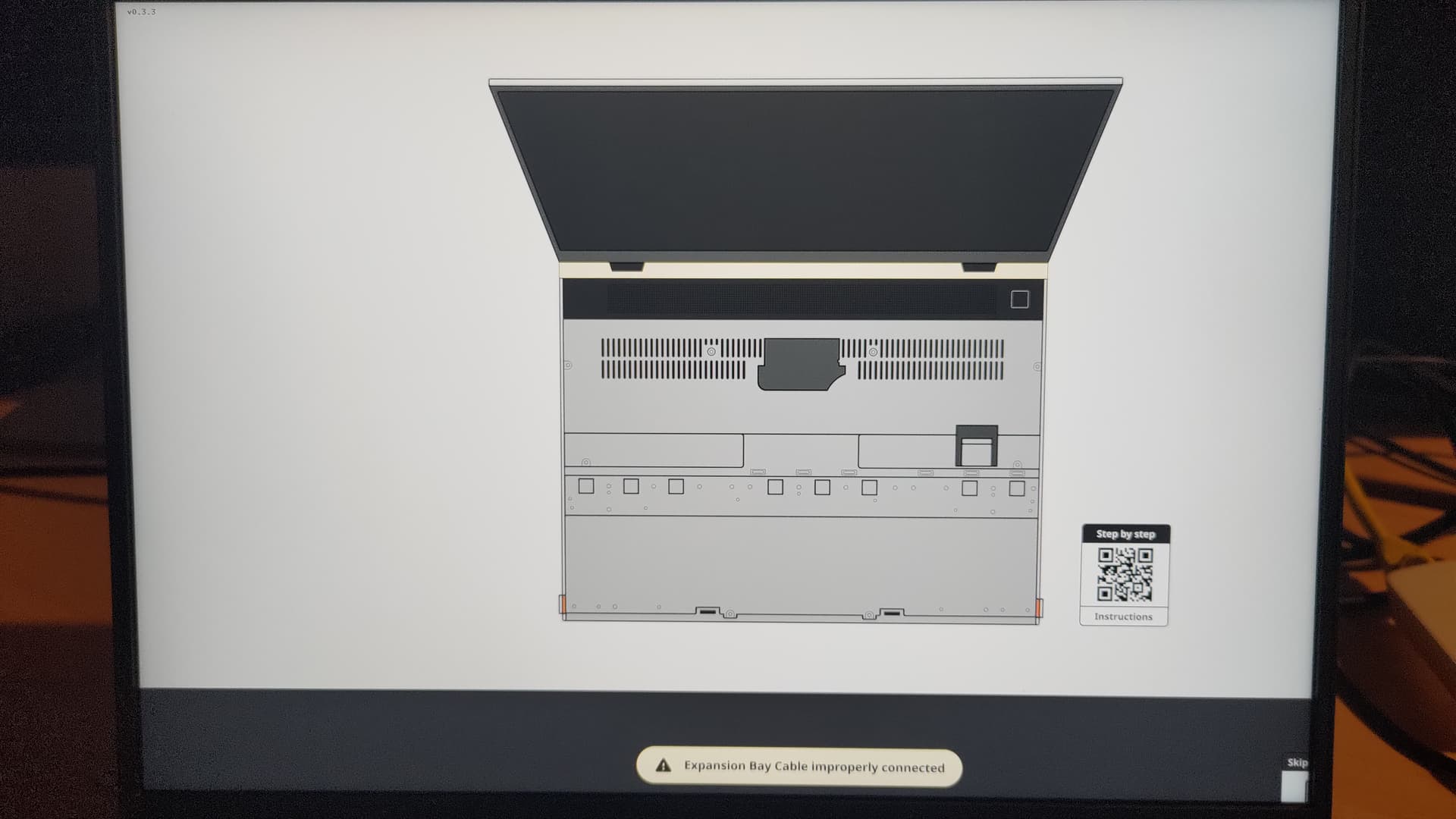
Following the Windows installation I tried to update the BIOS as it was recommended on the framework documents. Unfortunately I was in a hurry and did a very bad job: Downloaded und updated BIOS for Framework 16, which I wasn’t prevented from.
Now the Laptop ends up in a screen saying I have to check Expansion Bay Connection - which only would be available on Framework 16, as far as I know (see screenshot below).
Pushing the Power-Button again the Laptop starts to Windows, but neither mouse nor touchpad are functional anymore. I tried USB keyboard and mouse, which fails too.
With that it seems to me I have no chance to update to the correct BIOS.
Does anybody have any idea, how I can unbrick the Laptop?
I do updates using a USB stick following the “EFI method” listed at the bottom of the Firmware Updates page. I think you may be able to find a USB port that can still run this script and re-flash the firmware to the AMD 13” edition.
I did not know it was possible to do it that way.
It is mainly only other users here.
Raise a support ticket via the web site to get FW support.
Maybe there is a bios unbrick method they have not told us about, but I think you will get a replacement mainboard.
tried to connect USB Stick on various USB Ports of FWL. No success
tried to get back contact to the the keyboard and touchpad. No success.
Tried to use USB mouse and keyboard on different USB ports of the FWL. No success
Connected Lenovo Docking Station with FWL and mouse and keyboard on Docking Station. Success. get back mouse and keyboard control
Connect USB stick with Windows BIOS-Update via Docking Station. Success
Starting BIOS Update via Windows. Failed. USB C Port modules seemed to have lost charging capabilities and BOIS Update can only performed if Laptop is on AC.
Thank you all for your fast answers. I don’t bother with updating the EFI packages if this fits better. My recent opinion is, that this wouldn’t work because it requires also an USB-C module feasible for AC charging. As far as I understood BIOS update in each version checks for AC on at USB-C¹. Incorrect BIOS seems to have disabled the formerly working settings for the USB-modules.
One more thing: If the battery charge is low…you ‘might’ still still able to charge the laptop with a USB-A to USB-C cable. It would charge the laptop slowly at around 5w. (Yes, I’m aware that the usual USB-PD charging is not working for you)
The part that controls charging is the PD firmware and the EC firmware.
You can upgrade just those bits back to FW13 versions. That would get the usb charging working. Then, do a normal firmware upgrade of the bios, back to FW13 bios.
It all depends how much battery you have left.
What does FW support say?
Is this also a case of FW not accepting contributions from the community.
For example, the tool we use to install custom EC firmware specifically checks that you are using the correct firmware type before installing it.
Why FWs own tools don’t do the same is beyond me.
This is not a digital signature. It is a simple check that one only installs lotus firmware if the currently existing firmware reports it’s name as lotus.
Trying at first solution from @Second_Coming , the Laptop reboots, then get stuck with the Message “Update failed; EFI Error 21; firmware update failed!!!”And additionally “Please make sure system has adapter”
@Andres_Quast
I have just thought through your problem and how to recover it.
In short, you are completely stuck without a specially built recovery bios from FW.
So, don’t waste your battery, and just wait for FW support to sort you out.
None of the bios files you can download will fix your problem.
Expanding on the above:
there are various things to try, but they would all waste battery power, so the priority would be getting usb charging working again.
the charging is controlled by the EC and PD firmware. Not the BIOS We could force an update to a FW13 EC, but i don’t know how to force a PD update to match.
The BIOS update program probably thinks you now have a FW16, so switching to a FW13 BIOS probably will not work, without a special bios that bypasses all those safety barriers. This bug allowing you to flash a FW16 bios to a FW13 is probably not the same bug to flash a FW16 to a FW13, so it will stop you doing that.
because of the above, I think only FW support can help you with a recovery BIOS, but my guess is they will have to send you a replacement mainboard.