Which Linux distro are you using? KDE Neon
Which kernel are you using? 6.14.0-37-generic
Which BIOS version are you using? 4.04
Which Framework Laptop 16 model are you using? 7840HS w/ 7700S
When playing Helldivers 2, my fps are better on an external monitor (1920x1200) than on my internal display (both 2560x1600 and 1920x1200!).
This happens regardless of internal display scaling, resolution or game settings.
Only thing I haven’t tried is disabling VRR support in KDE.
Once back home I can test other games too, but it seems that the internal display has worse performance than external monitors because of the iGPU or something…
1 Like
I’ve done a lot of testing on this and I think I can provide some insights.
- Displaying at a lower resolution yields better performance, even if the game’s render resolution is the same. The simple act of sending more pixels over the display connection, regardless of what resolution the game is rendering at, has an impact on memory bandwidth that is wildly underrepresented in gaming benchmarks. This is much easier to detect on a hardware limited device like the Steam Deck, but I’ve also checked and seen this behavior on the Framework 16. When you say “both 2560x1600 and 1920x1200” are you changing the display’s resolution or the game’s render resolution? If it’s the game render resolution, then you are not eliminating this factor. For example: let’s say your playing a game and the game’s resolution is set to 720p. You have two monitors to choose from, one that outputs at 4k and one that outputs at 1080p. Outputting to the 4k will likely have lower fps than the 1080p display even though the game’s render resolution hasn’t changed. There also seems to be a slight impact based on the dock in use, as I can see slightly different frame rates when I switch docks in testing.
- If you connect to one of the expansion cards for video out rather than the dGPU directly, video has to be piped through the iGPU and this has a performane impact like you say. Personally, I prefer to use the expansion cards anyways, as the dGPU port seems to have it’s own issues as well.
On some devices, these fps differences can be quite drastic.
Also, by allowing the monitor itself to upscale from display resolution to the monitor’s maximum hardware supported resolution, there’s technically some processing taken off of the device. On something like the steam deck, this can be a significant performance increase depending on the amount of scaling needed.
Using Fullscreen instead of borderless can help avoid some of this by skipping the compositor and displaying direct to display, but idk if fps overlays and such will negate that.
Side note: I’ve got a similar thread here: FPS loss when gaming on external monitor - Framework Laptop 16 - Framework Community
1 Like
I forgot to include testing recommendations, my bad.
What I would recommend doing is set both displays equal to the same resolution and test the fps on both. If the FPS matches, then what I described above was likely the issue. If the FPS is closer but not quite the same, or if the external “feels” slower, then it could be the iGPU routing as well. When testing, be sure to use a common game resolution as well.
I have a 4k external monitor that I sometimes plug my FW 16 into, but I have it set to display out the same resolution as the internal monitor to avoid these issues (yes, that means black bars). This also helps me unplug mid-game without weird in-game issues due to resolution changes.
1 Like
Thanks for taking the time for your answer!
I did set my internal display to 1920x1200 and it had the same worse performance…
I’ll double check that tho!
What I want to check next:
- Setting Helldivers 2 to fullscreen (thanks for the linked thread!) on both displays and compare
- Set internal display to 1920x1200, then compare
- Disabling Steam Overlay
2 Likes
My monitor has a feature that lets me see the resolution and refresh rate of the incoming signal. That feature was invaluable in debugging this issue. For instance, one of the things that surprised me was that even when I select a lower resolution on Windows (I normally run linux) with my 4k monitor, it will render a lower image but still send the full 4k worth of pixels of the DP cable. It’d be worth checking if your monitor has a similar feature.
Also, the only reason I mentioned overlays is because Mario (local gpu pipeline/driver expert) mentions that the compositor is one of the most likely bottlenecks in the pipelines, and it’s preferable to use direct scan when gaming. A compositor helps do the math for laying multiple panes/images together (e.g. a game window + FPS counter text). I don’t think an fps counter is a terribly taxing process, but if it’s the difference between direct scan and not-direct scan, it could have an impact on overall performance (in theory).
1 Like
That’d be worth checking if the performance on the external monitor would be worse than on the internal display, wouldn’t it?
With the internal display working worse than the external monitor, this shouldn’t be of interest?
And yes, I read what Mario wrote, sounds like a good idea indeed 
1 Like
I can get better and worse frames out of my Framework depending on what display I plug into. If I plug into a 4k display w/ a game rendering at 1080p, FPS goes down (relative to internal display). If I plug into a 1080p display w/ game rendering at 1080p, FPS goes up (relative to internal display). In all scenarios, the game’s render resolution was the same.
Your external is (slightly) smaller than the internal, so I would’ve guessed fps goes up a little bit. It’d be nice if you had the exact FPS deltas though.
I now just use the display resolution setting to pretend the 4k display is identical to the internal, and I now get identical performance.
I also trust that you’re not overheating or coincidentally running into a battery flipping/charging issue when you change monitors: [SOLVED] An Adventure In Mitigating Throttling - #21 by TechPriestNhyk
1 Like
By that you mean, that you set the 4k monitor to the internal displays resolution, right?
I don’t think that I run into the battery flipping issue, because the performance difference occurs even by just setting the game to use the external monitor while ingame.
I’ll post some pictures of the detailed ingame performance overlay, which includes the frame times.
Yup. More specifically, I configure the operating system to output a display signal matching the resolution of the internal display. The subtlety in that becomes easier to spot when using something like gamescope that can act as a sort of “virtual monitor” between the game and the actual monitor, or when trying to replicate the same thing on Windows. The key is outputting only 2560x1600 pixels over the display cable.
How are you doing that? With gamescope?
1 Like
Using gamescope is not something I would recommend doing unless you know why you’re doing it beforehand. For what I was suggesting to you, no gamescope is needed.
1 Like
@Numerfolt did you happen to get some time to test this out?
1 Like
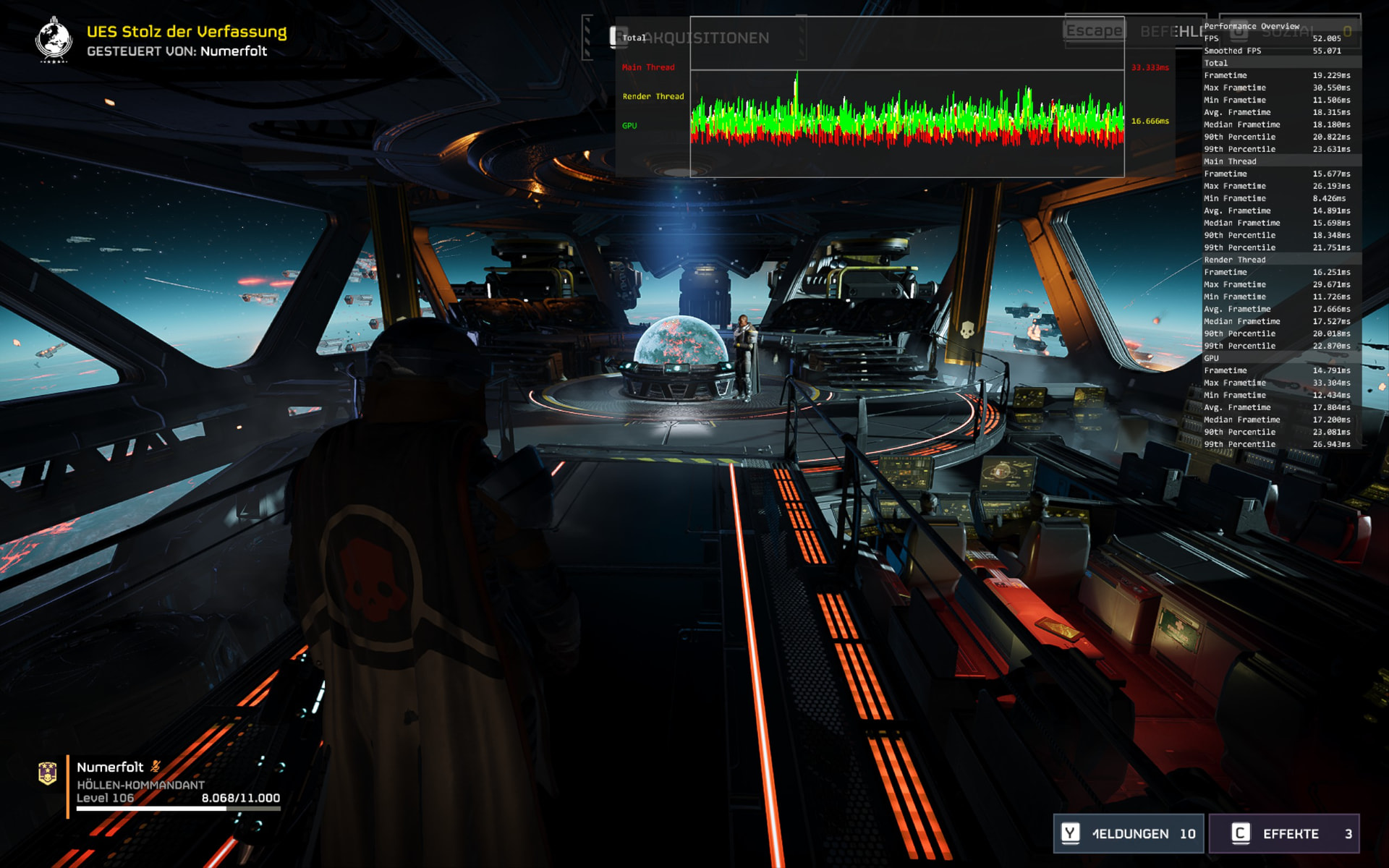
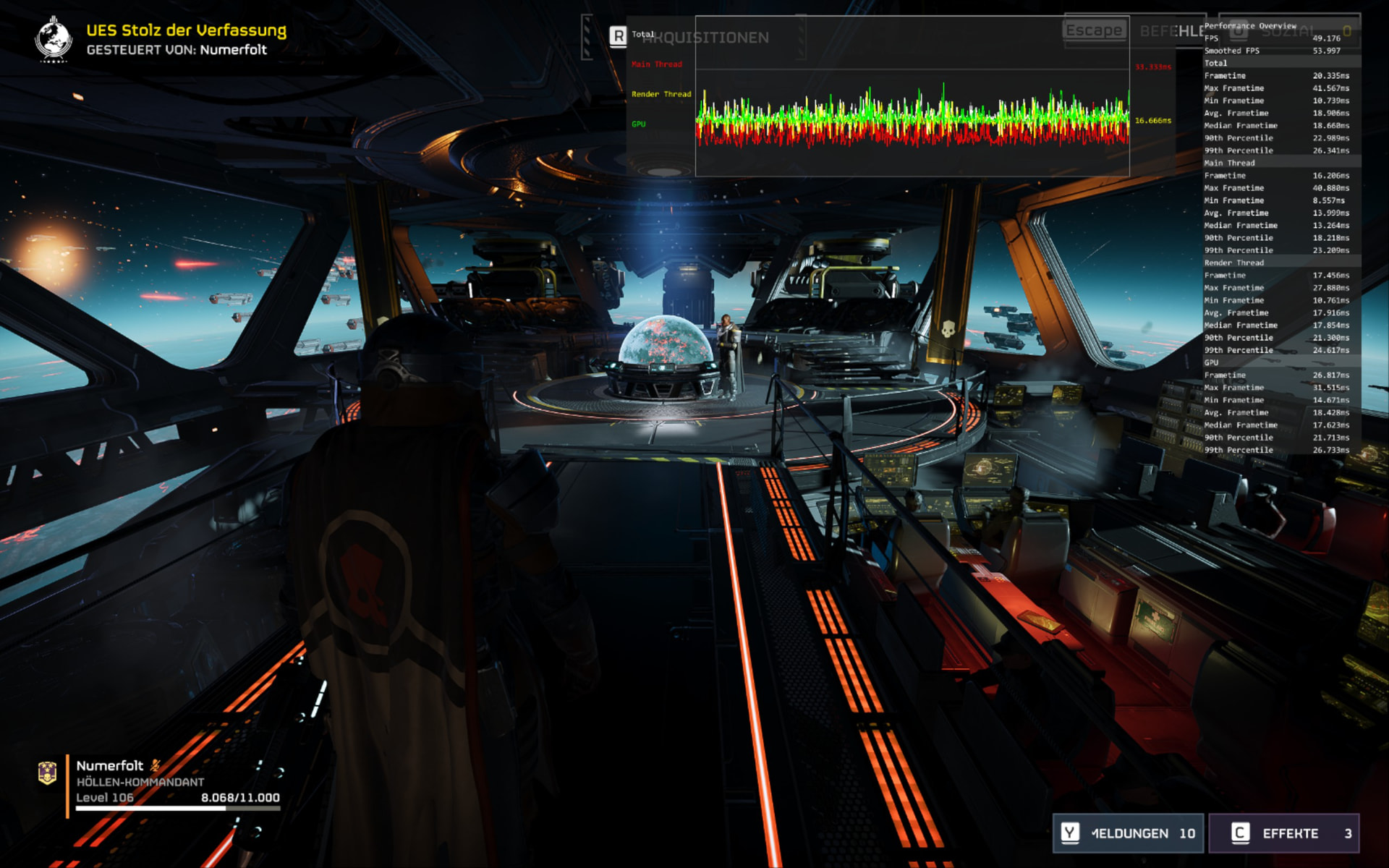
Yes, here are the results, the internal display performs worse even when set to the same resolution as the external monitor:
External Monitor 1920x1200, Game 1920x1200:
Internal Display 1920x1200, Game: 1920x1200:
Internal Display 2560x1600, Game: 2560x1600:
Internal Display 2560x1600, Game: 1920x1200:
These results are… confusing. Particularly the last two. I’m going to try and see if I can recreate your results on my setup sometime this weekend.
I quickly fired up helldivers 2 on arch on my framework 16 and only changed the display resolution left everything the same and on the internal display if I lower to 1920x1200 the FPS goes up by around 10% vs having the display at 2560x1600.
Yeah, that’s more in line with what I expected. Based on his screenshots (assuming there’s no error in his message) on the internal display going from 1600 → 1200 sees a ~30% drop in framerate. That’s nuts. I also notice his frame timings are far more erratic in images 3-4 compared to 1-2.
@Numerfolt any chance you would be willing to capture temperatures, power, and utilization logs as well? On Linux I use mangohud to do this, as the stats appear on screenshots and F2 can be used to create a log through mangohud.
Additionally, if you also have a windows install you can test, that could help eliminate software configuration as a failure point. HWInfo64 is a useful logging tool there.
Hmm, yes, indeed they are. I’ll double check the last two.
The erratic frame timings are indeed tied to the internal display resolution. 1920x1200 is way smoother, 2560x1600 is way jumpier…
I’ll give mangohud a try, anything I should know regarding configuration?
Edit:
Okay, this makes more sense (pay attention to 90th percentile):
Internal Display 2560x1600, Game 1920x1200, 90th percentile 20.822ms:
Internal display 2560x1600, Game 2560x1600, 90th percentile 22.989ms:
Setup MangoHUD to collect everything that makes sense
Here are some mangohud logfiles uploaded to privatebin (FPS capped to 60 with MangoHUD):
- 1920x1200 (display and game)
- 1920x1200 external
- 1920x1200 (game) at 2560x1600 (display)
- 2560x1600 (display and game)
(All available for 1 week from now)
What I found weird:
- The GPU sat at 80% most of the time (maybe because I set a 60fps cap?)
- Throttling showed “Temp” all of the time, and sometimes “Power”
- The battery drained until 80%, only then the charger icon appeared (I set the charging limit to 80% afaik)
- When testing on 1920x1200 with the internal display, the overlay shows the resolution 2112x1320?!? Internal display is set to 1920x1200, no scaling.
I made a couple quick dashboards from your data
Edit: I say quick, I guess I’ve spent an hour writing this already.
GPU
CPU
FPS
GPU Clock
Looking at this there’s a few things that stand out to me:
- Your CPU load is generally the same across all use cases, so you’re likely not CPU bottlenecked.
- Your GPU is under significantly more load when running 2560x1600 on the internal display than any of the other use cases. This makes sense, because it’s the highest resolution.
- Your GPU power is not bouncing up and down like crazy, so you’re not encountering the battery flipping issue in this test.
- Your GPU temps are fine (at least the one that’s reported is).
- Your CPU temps are fine enough.
- Your average framerate across all tests is exactly the same: 60, likely due to the 60fps limit you’ve applied. However, 2 of the 4 tests have significantly more erratic framerate than the others, and that also happens to be the 2 scenarios where you’re displaying at 2560x1600 regardless of the game’s render resolution.
- Your GPU clock speed never changed. This is very weird, as under load (which you are) the 7700s GPU clock should be closer to 2k for a heavy load, or at the very least changing withing some range. My first thought was that you might actually be gaming on the 780m iGPU, but the power draw of the red line says that’s definitely not possible. Are you on battery saver or something?
- Temp and Power throttling is pretty common to see when the device is under load. I imagine you were hitting power limit when running 2560x1600 display + game, but I can’t see a reason here for your device to be temperature throttling (except for perhaps the CPU).
It looks to me like you’ve got plenty of performance available to run at 60fps, but for whatever reason the frame pacing is unreliable at 1600p and your GPU doesn’t seem to be clocking up. I’d be curious if removing the framerate limiter and vsync improves your overall experience by stabilizing the frametiming and kicking your GPU into gear. You should also check your GPU memory temp, junction temp, and hotspot temp, though I’m not 100% certain if mangohud supports that. If I’m going that deep I’m usually on windows and using HWInfo64. If those temps are hitting 95-100c despite your gpu average being 50-65c, then it could be time for a repaste. I don’t think you’re encountering the memory bandwidth issue I mentioned earlier because A) you’re on a dGPU which has it’s own bandwidth, and B) your average fps doesn’t appear to be affected. It looks like the game should run fine on your device at 1600p. Now, if your GPU memory is hitting 100c for some reason though, that could explain some of this behavior.
It also doesn’t hurt to just give your vents a good cleaning if you haven’t in the last couple months.