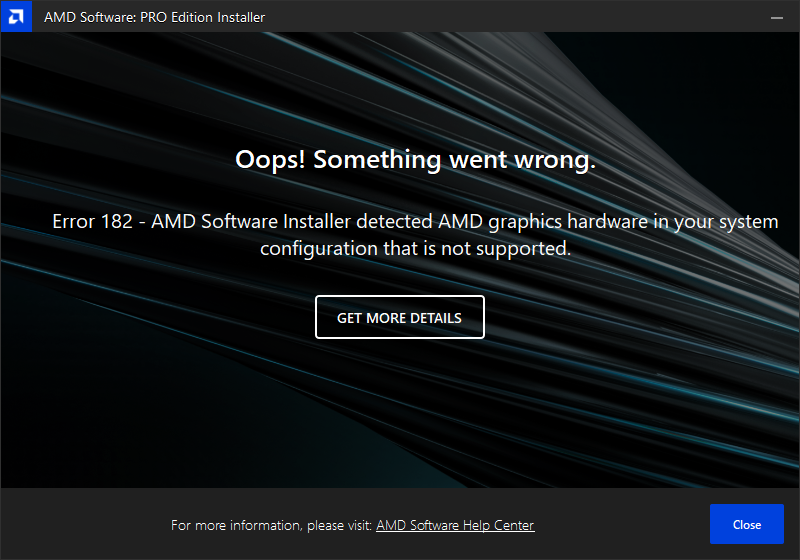
Workaround: Install AMD consumer graphics driver on Windows Server 2025
(Framework Desktop - Radeon 8060S)
1) Downloads
2) Extract the Framework driver bundle
3) Extract the AMD graphics driver
Navigate to:
.\Packages\Drivers\Display\WT6A_INF\
This folder contains the display driver INF we will modify.
4) Locate the correct INF
In WT6A_INF, locate the INF file starting with u, for example:
u0420422.inf
(This INF already contains DEV_1586 for the Radeon 8060S.)
5) Edit the INF (important)
Open u0420422.inf in Notepad (run Notepad as Administrator).
6) Add a Server 2025 manufacturer target
Near the top (around line ~70), find the [Manufacturer] section and add a new line for Server 2025 support:
[Manufacturer]
%ATI% = ATI.Mfg, NTamd64.10.0.1..16299, NTamd64.10.0.1, NTamd64.6.0.1, NTamd64.6.1.1, NTamd64.6.2.1, NTamd64.6.3.1
%ATI% = ATI.Mfg, NTamd64.10.0...26100
 Do not remove the existing line — just add the new one.
7) Create a Server 2025 manufacturer section (important correction)
Do NOT rename the existing section. You must COPY it.
Find this section (around line ~75):
[ATI.Mfg.NTamd64.10.0.1..16299]
"%AMD1114.1%" = ati2mtag_Krackan, PCI\VEN_1002&DEV_1114&SUBSYS_A10B1019&REV_C2
"%AMD1114.2%" = ati2mtag_Krackan, PCI\VEN_1002&DEV_1114&SUBSYS_A10B1019&REV_C3
...
...
Correct action:
-
Copy the entire section, including all device lines (thousands of lines)
-
Paste it below e.g., at empty line 3851.
-
Rename the copied section to:
[ATI.Mfg.NTamd64.10.0...26100]
Do not change the contents.
This section already includes:
PCI\VEN_1002&DEV_1586&SUBSYS_000AF111&REV_C1
Save the file.
8) Enable test signing
Open Command Prompt as Administrator and run:
bcdedit /set testsigning on
9) Reboot
During and after reboot:
This confirms unsigned drivers are allowed (temporary security risk).
10) Install the driver via Device Manager
-
Open Device Manager
-
Locate the graphics device.
-
Choose Update driver
-
Select Browse my computer
-
Point to:
.\Packages\Drivers\Display\WT6A_INF\
-
Accept warnings and install
11) Disable test signing (fixes the security risk)
Open Command Prompt as Administrator and run:
bcdedit /set testsigning off
12) Reboot again
After reboot, confirm in Task Manager:
AMD Radeon(TM) 8060S Graphics
The driver remains installed even though Test Mode is disabled.
13) Install AMD Software: Adrenalin Edition (optional)
In WT6A_INF, locate the folder starting with B, for example:
.\Packages\Drivers\Display\WT6A_INF\B420106\
Run:
ccc2_install.exe