Hey desktop crew. I wanna use this thing for multiple use-cases simultaneously. Namely, game servers, AI API server (ollama or vllm) and various other web servers maybe in podman containers. So, Proxmox seems ideal. Now that there are more desktops in the wild, has anyone else done this yet? Curious to see how you’ve approached your setups and if you ran into any problems (+ solutions). I’m concerned about iGPU passthru and handling the shared memory pool… Any thoughts?
3 Likes
I stumbled upon this https://strixhalo-homelab.d7.wtf/, might be useful.
3 Likes
I have run into issues getting passthrough to work on Linux (have tried Ubuntu 24 and Fedora 42 so far), I can see the GPU in linux vm but the driver crashes and I get no /dev/dri.
I took a look at the other link in the thread and will give windows a shot, but long term I’d like to be able to use linux.
1 Like
Yeah, that link has some good info, but it doesn’t look very hopeful. https://strixhalo-homelab.d7.wtf/Guides/VM-iGPU-Passthrough Seems like you can only passthrough the iGPU once, then after you need to reboot the HOST (proxmox)! Seems like a long-standing AMD GPU issue, which has been resolved in the past for older GPUs, but the solution vendor-reset package has not been updated and according to our source, is not worth even attempting to use. Hopefully someone with more understanding on the situation can weigh in and maybe deliver a solution…. I am hopeful.
I completely agree. Yes the guide works but only before reboot is just not practical, regardless Windows or Linux VM. So now my question is, can I install the needed drivers inside Proxmox and run the LLM on the host instead of LXC or VMs?
Ideally, I’d like to passthrough the GPU as I can either use it as a display or running LLM inside a VM/LXC/container. But if that is not viable, then my backup option would be to run the LLM locally on the host (and probably not recommended or best practice).
Hey people,
I just got Proxmox iGPU passthrough on my framework desktop board working after the BIOS upgrade. Not quite sure if the VBIOS changed and that was the key (but I am attaching checksum information on the used ROMS in any case).
Had LLMs help me summarize the complete state of my system and how I got there:
I am absolutely sure that not everything is needed to be set like this for it to work. But sometimes it is nice to have a really detailed description of a working system.
(If this is considered too much spam/AI Slop I will be happy to shorten/redact)
Update: There is more to it :
(Excuse the multiple edits, this was quite a journey. I briefly thought I was going insane. After playing around some more and rebooting, without changing anything, the driver stopped loaded correctly on the guest. So I kept retracing what I did before I got it into the working state.)
It turns out that it only works if you do a warm-up binding procedure on the host, where you first unbind from vfio and then rebind to amdgpu. Note that the kernel must not be blacklisted for that.
echo 0000:c8:00.0 > /sys/bus/pci/drivers/vfio-pci/unbind
echo 0000:c8:00.0 > /sys/bus/pci/drivers/amdgpu/bind
qm start <VM_Number>
It then even works again after rebooting/shutting down the guest virtual machine gracefully.
Hard stopping with qm stop <VM_Number> brings the system into an unstable state.
Trying to unbind/rebind in this unstable state leads to a crash of the host…
I will keep on reporting, for now I think I will just have a script automatically do the warmup on host boot and pray that the guest does not crash ungracefully while I am playing with it…
So here we go:
Overview
Complete setup for passing through AMD Strix Halo integrated GPU (Radeon 8050S/8060S Graphics) to a Proxmox VM with UEFI support.
Tested on:
-
Proxmox VE 9.0.11
-
Kernel:
Linux version 6.14.11-4-pve (build@proxmox) (gcc (Debian 14.2.0-19) 14.2.0, GNU ld (GNU Binutils for Debian) 2.44) #1 SMP PREEMPT_DYNAMIC PMX 6.14.11-4 (2025-10-10T08:04Z)
Prerequisites
1. Update Framework Desktop BIOS
Using the newest Framework Desktop BIOS 3.03:
# Update BIOS using fwupdmgr

fwupdmgr refresh --force

fwupdmgr get-updates

fwupdmgr update
Note: Ensure charger is attached during BIOS update and do not interrupt power during the process.
2. Configure BIOS/Firmware Settings
Access BIOS setup (F2 during boot) and configure:
Administer Secure Boot:
- Secure Boot: Disabled
Setup Utility/Advanced/:
-
iGPU Memory Configuration: Custom
-
iGPU Memory Size: 96GB
Setup Utility/Security/:
- TPM Availability: Hidden
Host Configuration
3. Enable IOMMU
# Edit /etc/kernel/cmdline

root=ZFS=rpool/ROOT/pve-1 boot=zfs quiet amd_iommu=on iommu=pt video=efifb:off
4. Configure VFIO Modules
# Create /etc/modules-load.d/vfio.conf

vfio

vfio_iommu_type1

vfio_pci

vfio_virqfd
5. VBIOS Extraction
Important: VBIOS extraction requires the amdgpu driver to be loaded. Do this before creating the blacklist:
- Create VBIOS extraction tool (
vbios.c):
-
Follow steps 1-2 from the VBIOS Extraction Guide
-
This creates the
vbios.cfile and compiles it
- Extract VBIOS (while amdgpu driver is available):
gcc vbios.c -o vbios

./vbios

# This creates vbios_1002_1586.bin
- Place VBIOS file:
mv vbios_1002_1586.bin /usr/share/kvm/
6. Blacklist Host GPU Drivers
( do not blacklist amdgpu, because we need it for the warmup procedure)
# Create /etc/modprobe.d/blacklist-gpu.conf

blacklist radeon

blacklist snd_hda_intel
7. Bind GPU to VFIO
# Create /etc/modprobe.d/vfio.conf

options vfio-pci ids=1002:1586,1002:1640

softdep amdgpu pre: vfio-pci

softdep snd_hda_intel pre: vfio-pci
VM Configuration
8. Guest OS Setup
Install required packages in the guest:
# For Arch Linux (example)

sudo pacman -Syu --noconfirm linux-firmware mesa vulkan-radeon xf86-video-amdgpu

# For Ubuntu/Debian

sudo apt update && sudo apt install -y linux-firmware mesa-vulkan-drivers xserver-xorg-video-amdgpu
Force GPU driver detection in guest:
# Add to guest kernel command line (e.g., /boot/loader/entries/*.conf for systemd-boot)

options root=ZFS=rpool/ROOT/pve-1 boot=zfs quiet amdgpu.force_probe=1002:1586
9. VM Settings
Verify GPU PCI addresses:
# Find GPU devices - should show c8:00.0 (display) and c8:00.1 (audio)

lspci -nnk | grep -iE "vga|display|audio" -A3

# Look for devices with IDs 1002:1586 (display) and 1002:1640 (audio)

# Note: Ignore any "pcilib: Error reading /sys/bus/pci/devices/.../label: Operation not permitted" warnings - they are harmless
# /etc/pve/qemu-server/100.conf

agent: 1

bios: ovmf

boot: order=scsi0;ide2;net0

cores: 16

cpu: host

efidisk0: local-zfs:vm-100-disk-3,efitype=4m,pre-enrolled-keys=0,size=1M

hostpci0: 0000:c8:00.0,pcie=1,x-vga=1,romfile=vbios_1002_1586.bin

hostpci1: 0000:c8:00.1,pcie=1,romfile=AMDGopDriver.rom

machine: q35,viommu=virtio

memory: 16384

vga: none
ROM Files
10. Required ROM Files
-
VBIOS:
vbios_1002_1586.bin(17,408 bytes) -
MD5:
8f2d1e6c0a333d39117849bbfccbb1d7 -
SHA256:
35ea302fd1cf5e1f7fbbc34c37e43cccc6e5ffab8fa1f335f4d10ad1d577627d -
UEFI ROM:
AMDGopDriver.rom(92,672 bytes) -
MD5:
4c0fee922ddf6afbe4ff6d50c9af211b -
SHA256:
1c2b9dc8bd931b98e0a0097b3169bff8e00636eb6c144a86be9873ebfd6e3331
11. UEFI ROM Setup
# Download AMDGopDriver.rom

wget https://github.com/isc30/ryzen-gpu-passthrough-proxmox/raw/main/AMDGopDriver.rom -O /usr/share/kvm/AMDGopDriver.rom
12. Reboot the host and apply warmup procedure
echo 0000:c8:00.0 > /sys/bus/pci/drivers/vfio-pci/unbind
echo 0000:c8:00.0 > /sys/bus/pci/drivers/amdgpu/bind
qm start <VM_ID>
After starting the VM, proxmox binds vfio again and the driver is loaded correctly in the guest. It keeps working correctly, as long as the host is shutdown gracefully reboot or shutdown.
Warning: A cold “stop” of the VM in proxmox qm stop <VM_id> (or via GUI) leaves the system in an unstable state. After a non-graceful stop, restarting the VM leads to driver errors.
Trying to unbind and rebind the pci address completely crashed the kernel.
Also, after the first restart I did not get HDMI output, but I do not care, since I am running this machine headless for my use case.
Verification
The setup is successful when guest dmesg (on the guest) shows:
Fetched VBIOS from VFCT[drm] Loading DMUB firmware via PSP: version=0x09002E00Initialized amdgpu 3.64.0 for 0000:01:00.0 on minor 0- No PSP firmware loading errors
References
-
VM-iGPU-Passthrough – Strix Halo Wiki (my first resource, but this was done on a non framework strix halo machine)
-
Framework Desktop BIOS 3.03 Release - Latest BIOS with widescreen support and security updates
-
VBIOS Extraction Guide - Steps 1-2 for VBIOS extraction from VFCT
-
AMD GPU Passthrough Repository - Complete guide and ROM files
6 Likes
Hi great work!! Being looking for this in the past weeks.
I am, trying to follow your steps and need some clarifications if possible. Especially in the sequencing of actions.
In step 8 I guess you have already installed the guest, booted in it and installed driver packages and force the GPU driver detection from within the guest.
But then in step 9 you set the configuration file of the guest vm in the host, so how did you launch the guest in step 8?
Then where do we place the files in step 10? In the guest or the host? The vbios_1002_1586.bi has already been mv in step 5 in the host.
Last step 11 is the be run in the host or the guest?
No need to say that when I reboot the host and try to apply the warmup procedure I get bash: echo: write error: No such device but this is the be expected…
Anyhow I am a little bit confused in the sequencing off the steps…
According to this other guide ( GitHub - isc30/ryzen-gpu-passthrough-proxmox: Get the Ryzen processors with AMD Radeon 680M/780M integrated graphics or RDNA2/RDNA3 GPUs running with Proxmox, GPU passthrough and UEFI included. ), you need to move the vbios_xxxx.bin to /usr/share/kvm/.
Thank you so much for this detailed step-by-step guide. However, this method (like others I have read online) also has the downfall where the GPU passthough fails after a reboot.
Apparently a common issue with AMD gpus but the only difference is that there are fixes for the older generation GPUs but not the Strix Halo. 
As I said. Reboot works for me, but only if I shutdown/reboot the guest gracefully. (No cold stop/reset). The guest is arch linux with zen kernels.
Understood. For my use case, I need a robust way to reboot/stop the VMs, regardless graceful or not. Having to reboot the host won’t work for me (even if I can script it to automate detection and reboot).
In the mean time, I am still tweaking my LXC passthrough set up. This approach is far less involving (and easier) but it’s only my interim workaround solution.
I am praying someone from AMD will release something so that we can patch it (just like all other GPUs of theirs).
BTW, a friendly reminder to install the latest 3.04 bios to address the uefi exploit.
Hey @Zuperkoleoptera
You are right, for step 8 I assume you have a guest system running, just not yet with pcie passthrough. This is not necessary, your distro might have drivers installed and you can install them later. I am also not sure if force binding is required, I have not gotten round to see what actually is required. I was just happy to have a running configuration, disregarding the fact that the GPU still becomes unstable/locked after a guest hardstop.
The configuration of the guest is in /etc/pve/qemu-server/<vm_num>.conf
You can launch the guest in the commandline qm start <vn_num> or from the web UI.
All steps (but these in 8) are on the host.
Please report if you get it working.
I posted my struggles to get everything going on another thread. For what it is worth I have eventually got to a point where a Windows VM (mostly) works on Proxmox and then Unraid, but possibly used a few less steps!
Like most I started with this VM-iGPU-Passthrough – Strix Halo HomeLab , but also found this page (that I’ve not seen mentioned before) useful GitHub - Uhh-IDontKnow/Proxmox_AMD_AI_Max_395_Radeon_8060s_GPU_Passthrough: Proxmox GPU Passthrough Guide for AMD Ryzen AI Max+ 395 (Strix Halo / 8060S)
To me, it seems the key to it working was -
a) Updating the BIOS to 3.03
b) Extracting my own vbios - the ones online didn’t work ( GitHub - isc30/ryzen-gpu-passthrough-proxmox: Get the Ryzen processors with AMD Radeon 680M/780M integrated graphics or RDNA2/RDNA3 GPUs running with Proxmox, GPU passthrough and UEFI included. )
I’ve kept secure boot and TPM enabled.
In Proxmox I followed these steps -
/etc/default/grub:
GRUB_CMDLINE_LINUX_DEFAULT=“quiet amd_iommu=on iommu=pt initcall_blacklist=sysfb_init”
etc/modeprobe.d/vfio.conf:
options vfio-pci ids=1002:1586,1002:1640 disable_vga=1
/etc/modeprobe.d/blacklist.conf:
blacklist amdgpu
blacklist radeon
blacklist snd_hda_intel
And key parts of my config -
balloon: 0
bios: ovmf
cores: 32
cpu: host
hostpci0: 0000:c3:00.0,pcie=1,romfile=vbios_1002_1586.bin,x-vga=1
hostpci1: 0000:c3:00.1,pcie=1,romfile=AMDGopDriver.rom
machine: pc-q35-10.0+pve1,viommu=virtio
memory: 16384
numa: 0
sockets: 1
I used SPICE initially to install the AMD 395 Drivers ( AMD Ryzen™ AI Max+ 395 Drivers and Downloads | Latest Version ). It seems you have to use these specifically, rather than any other version. Finally, remove the SPICE display et voila!
I prefer Unraid so modified to these steps…
Update syslinux on the “Flash Settings” page -
kernel /bzimage
append initrd=/bzroot amd_iommu=on iommu=pt initcall_blacklist=sysfb_initCreate the blacklist.conf only
Tick off the two devices in the “System Devices” page
Create the VM in a similar fashion, but the sound BIOS has to be added manually to the .xml (and it likes to forget it on making other changes)
I’ve just accepted the reboot bug for the moment.
What I am struggling with is the VRAM allocation - I have set 96GB in the BIOS and everything looks correct in Windows etc. HOWEVER, when trying to use a larger model e.g. gpt-oss-120b, I get out of memory errors on loading. I think in some fashion the drivers still assume it has to manage whole 128GB, when in reality it is 116GB (96GB VRAM and 16GB RAM passed through) and this throws it off. Not managed to resolve this yet…
My latest thought is to actually do a switcheroo and just run Windows baremetal and then Unraid as a VM (trying to make a AI capable home server/NAS that doubles as desktop, foolish I know, but since it uses way less power than my gaming PC!)
Thanks for this guide I was able to follow it and get it working on my Framework Desktop. I did a few things different. On the VM I used Fedora Server 43. I set the iGPU Memory Size to the minimum of 512MBs. I then gave the VM 96 GBs of RAM and set it to use 90 GBs of GTT. You could probably push it more than this but I don’t need that much vRAM currently so I left it at levels people have said were stable. I am able to run the full gpt-oss:120b model with this setup. So far seems as stable as my native Fedora Server install I was using before this.
I’m awaiting reviews on using Framework Desktop + Proxmox before buying it, but it seems like not many people are interested.
So it’s great to see that some people have managed to use it with Proxmox, thank you very much guys.
If we can use LLMs in a Proxmox VM that’s already a very good start.
I’m wondering if passing the GPU to a Windows VM allows for gaming with good performance.
i am also running proxmox on my framework desktop. honestly everything is great apart from the PSU noise(see thread here in the forum). i had more problems initially to make everything running on my old 11th gen framework motherboard.
but i have to admit i am currently only running normal containers(vm and lxc), without using the gpu. my plan is to take the easy way and just use a lxc to share the gpu. for example for immich ml.
from a power consumption point i am a little bit dissapointed, i am currently at 20W with power save governor. however i am planning to also activate all C states to make the cpu enter lower sleeping modes. maybe that helps. my old 11gen was running at 5W or so, with everything deactivated (of course it is wayyyyyyy slower, but still).
Great thread! I pulled the trigger and I am building a home server from a desktop with Proxmox. It will be my router(hosting dual WAN)/Plex/Frigate (cameras)/Game servers/Unify/etc. I’ll let you know how to goes.
Hey someone on GitHub linked my this post and i thought i want to share some things to make this more accessible to everyone.
My Wish-Setup was:
Proxmox9 with LXCs that all can use LLMs via Docker and use AMD AI 300 Series APUs for giant LLMs but less fast responses and also a mixed-in RTX2000E for lower-weights but fast response LLMs models. Big requirement was “no exclusivity to one VM” also not weird VBios and Reset-Hang-Host-Reboots. As there was nothing to find for this or compare against, i had to figure it out myself over like 3-4 weeks in my free-time and im happy to report that i solved this and fully-automated it to share it with everyone on the web. Took some time though 
 .
.
Here is what i got, feel free to test it or improve it with me.
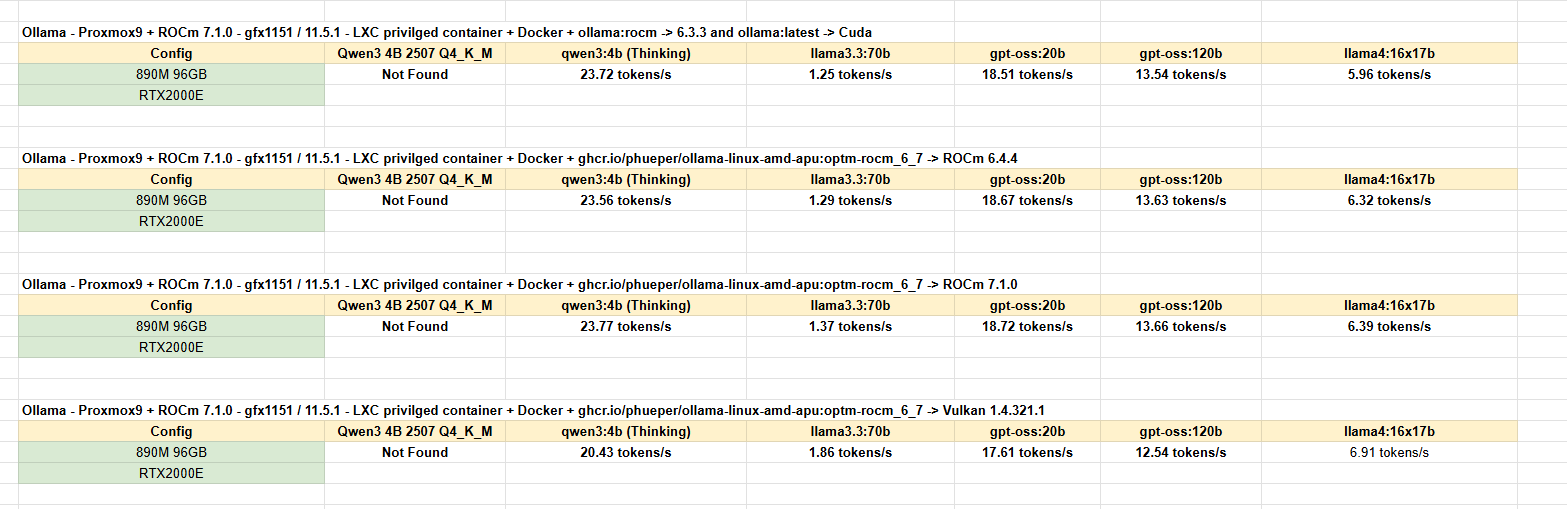
I currently have for testing 5 LXCs with AMD APU and 3 LXCs with Nvidia running, all transparent to the Host with any process. Every LXC container has Docker-installed and a ollama:latest or ollama:rocm or this persons image version running which supports ROCm 6+7+Vulkan:
Here are some performance benchmarks if you like to read those:
3 Likes
Thanks for the guide. I think that there is a mistake to where to download the rom from, the provided GitHub URL has a different SHA and sizes, your SHA corresponds to the ones provided here: VM-iGPU-Passthrough – Strix Halo Wiki
Just another note on the configuration, in my case having secure boot enabled with ZFS, I was using GRUB and in this case the kernel params must be done on /etc/default/grub changing GRUB_CMDLINE_LINUX_DEFAULT
I guess the way to understand if you are using grub or systemd-boot is proxmox-boot-tool status 2>/dev/null | grep -q ‘grub’ && echo ‘grub’ || echo ‘systemd-boot’
I hope that I’ve assumed things right, this is what even stated on the official doc: Host System Administration