Critical issue with reinstalling Windows on Framework 16

Hi guys. I need your help urgently because I can’t earn my living right now.

I’m the proud owner of a Framework 16 since November 2025. Here are the Pre-built specs I bought :

AMD Ryzen 7 7840HS,
Windows 11 Family
AMD Radeon™ RX 7700S
512Go SSD DDR5
8x2 Go
I recently changed the SSD from WD 850X to WD 7100 and realized that it was not compatible with my specs when laptop hard booted fresuently6 by itself and the fans were working a lot. I then replaced it with the original SSD that I formated beforehand and the Windows 11 install process worked briefly as I got to the blue screen message for selecting language. But afterwards, it booted back to a “trying to repair” and didn’t complete. And now I’m stuck to that phase.

I tried once without any SSD and I managed to get once again to Windows 11 install language selection. Then a few minutes later, on the very same screen, without doing anything it rebooted again. Back to “trying to repair” black screen.

I am unable to complete the Windows 11 installation.

Below you’ll find a compilation of my troubleshooting work with Gemini
Error Codes encountered :
​IRQL_NOT_LESS_OR_EQUAL.
​KMODE_EXCEPTION_NOT_HANDLED.
​KERNEL_SECURITY_CHECK_FAILURE.
​Infinite boot loop at the Framework logo.

​Troubleshooting Steps Already Taken:
​Installation Media: Created a fresh Windows 11 USB installer using the official Microsoft Media Creation Tool.

​Thermal Management: Ensured all spacers and the keyboard module are properly installed to maintain correct airflow and cooling for the Ryzen processor.

​Memory Isolation: Tested each 8GB RAM module individually in the “Channel 0” slot. The boot loop persists regardless of which module is used.

​BIOS Settings: “Secure Boot” and “Fast Boot” have been set to “Disabled”.

​Expansion Cards: Tested the USB installer in Slot 1 and the power adapter in Slot 4. Removed unnecessary cards (HDMI) to isolate the issue.

​SSD: The WD SN810 has been formatted to NTFS, but the installer fails before reaching the partition management screen or immediately after starting the file copy.

​Current Status:
The machine continues to reboot indefinitely or trigger a BSOD shortly after selecting the “EFI USB Device” in the Boot Manager.

I’m a young Freelancer and I can’t do much without my computer.

Please help me I’m really desperate.

Nb : I wrote in English but I’m much more fluent in French if that helps

Seems like you might have bad RAM. Try removing one of the two 8GB modules. If the problem persists, try using the other module.

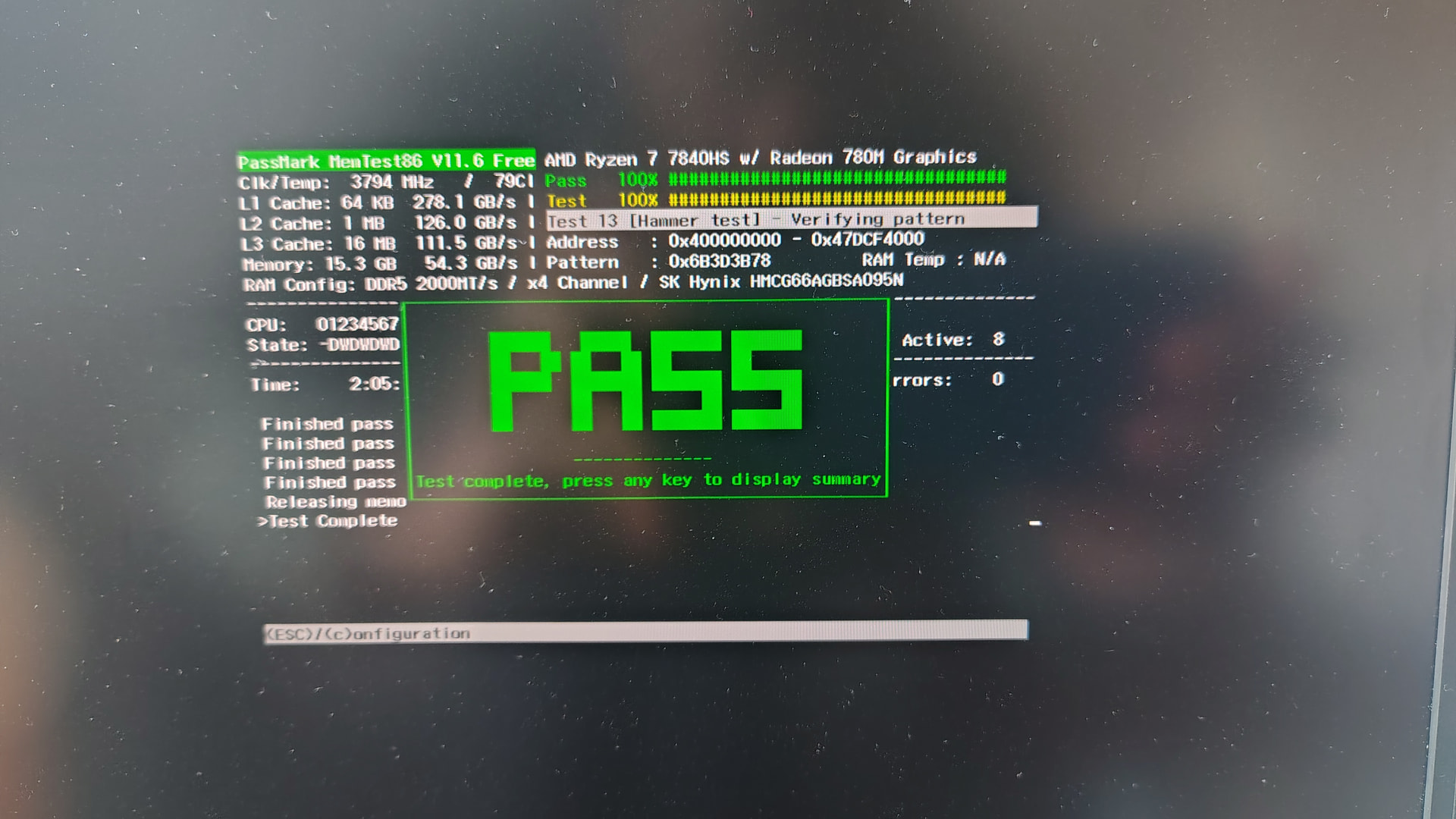
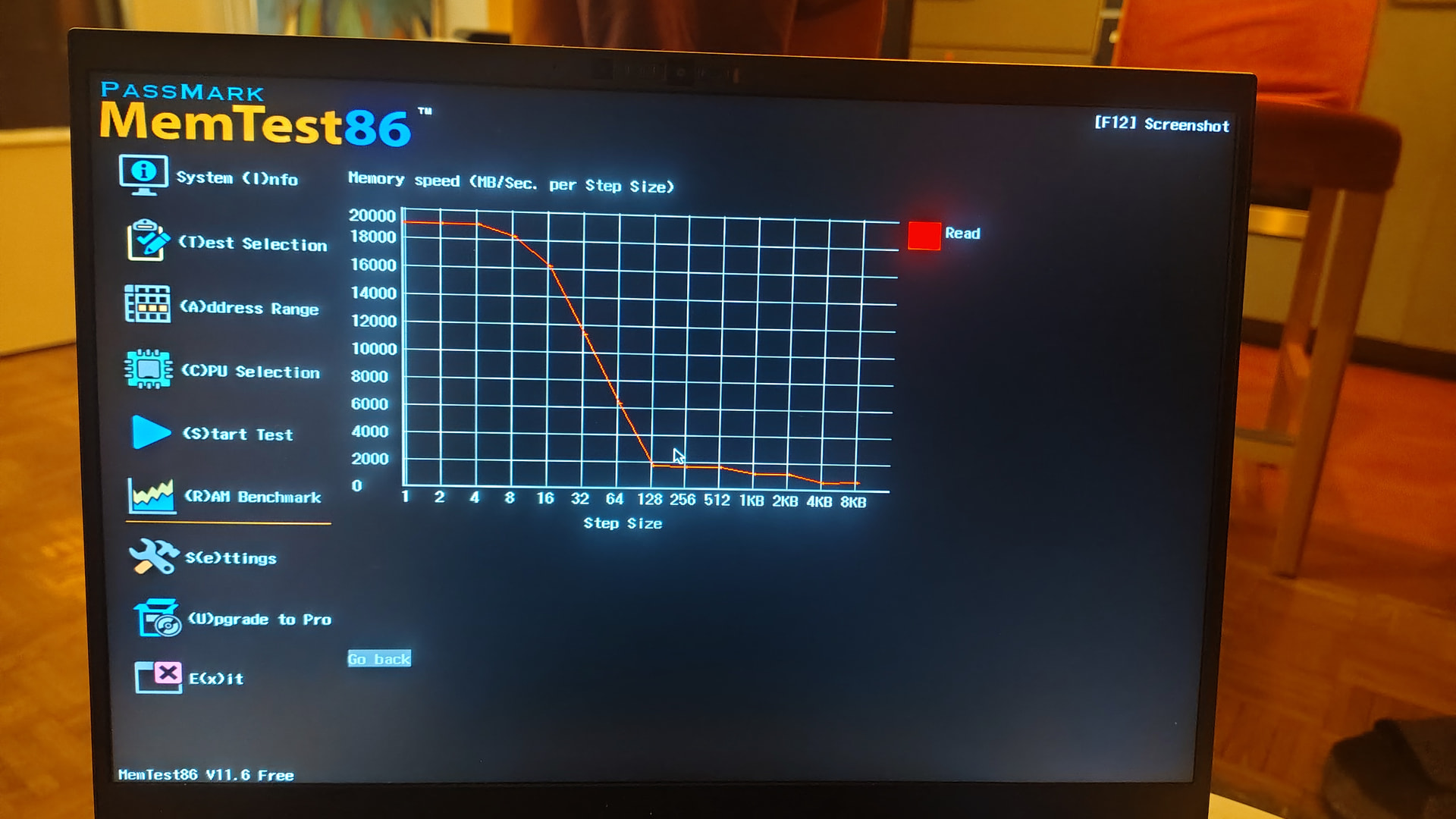
It may be a good idea to run a bootable memory test.

Hi friend, thanks for the suggestion and your interest :folded_hands: ! I’ve actually already performed a manual memory isolation test: I tested both RAM modules individually in the primary slot, and the boot loop persisted with the official Windows Media Creation Tool USB.

However I managed to boot once from the infamous WD SN7100 SSD that had an existing Windows install. It reached the BitLocker recovery screen and stayed stable there. So I deduced RAM was not involved. I’m gonna run the bootable memory test though.

But I wonder if the problem is not the USB key or the installer boot process. I’m going to try creating a new installer using Rufus in GPT/UEFI mode tomorrow…

Please let’s stay in touch, I feel so lonely in this situation :folded_hands:

Bonjour @Lilian_Lilian (sorry that is about the extent of the French I know)

If you can get into the BIOS (F2 or Del key upon power up) I believe you can change the boot order to always try the USB first. That may be where your boot loop issue is coming from. [Alternatively pressing F12 gives the one-time boot menu]

The system keeps trying the SSD because it is the first entry on the list and it is deceiving that it is in recovery mode vs. the Windows installer from the USB.

If no data is needed on one of the SSD drives, you could try creating an Ubuntu USB and booting to a LIVE session and then completely wipe the SSD partitions installed on the drive inside the Framework.

After doing that the system will not see any bootable drives and will by default try to boot from the USB Microsoft Installer.

This is presuming you have a backup of all your files somewhere else and just need a clean system to get back to working again!

It is probably safe to turn on Secure boot again as I think that might be a requirement of the newest Windows 11 installer from Microsoft.

Hi pkunk, French hello much appreciated haha :baguette_bread:

I’ve already tried the F12 one-time boot menu multiple times. The issue is that even when I manually select the USB installer, the system reboots in a loop after a few seconds of loading.

However, as I said previously, I successfully reached the BitLocker screen on the WD SN7100 SSD (the little merde that fucked up my entire parameters but thats my fault it wasn’t in the recommended SSDs), so I know the hardware is capable of booting.

Gemini suspects that my current USB key (made with MCT) has a partition table conflict (MBR) that the Ryzen 7040 BIOS doesn’t like…I am personnally too much of a newbie to have any opinion, but for sure I insisted very much on booting the Windows 11 Media Install with the same USB Key

Wdyt ?

The bluescreening happened after you swapped to a different SSD? Both of those SSDs should work just fine in the framework, is it possible you shorted something while installing the SSD or damaged the NVMe port’s pins?

Greetings @Lilian_Lilian,

Then from the sounds of it, something is wrong with the USB installer. I have heard of the Microsoft Media Creation tool making a bogus USB drive to boot from. This is not common though. Maybe follow the guide Framework has for creating a bootable media. (OOPS! It used to have a guide on how to use Rufus to create media but I see it is now changed!) The updated guide is here: Windows 11 Installation on the Framework Laptop 16 DIY Edition - Framework Guides

Maybe try a different USB to create the media and possibly use a different slot on the Framework?

I would suggest using Rufus to create the media but that guide is no longer there and is a little more involved. I agree with you that I think there is something wrong with the USB media in how it is formatted. Maybe going into the BIOS and resetting them to their optimized defaults might clear something out too; just trying to think of ideas that will help you to move forward with an install. Sorry this is so frustrating.

One last thought before I head to bed. Did you create a bootable USB with a USBC drive? Maybe try a plain old USBA drive to create the bootable media? I have an external drive holder that is USBC that is not always recognized on some computers as a bootable device. Once it is connected to a running computer it sees the NVMe drive just fine inside the external drive holder just fine. :partying_face:

Hi guys, thanks for your support !

@pkunk I bought 2 new USB keys to try both Rufus and Media installs version. And yes I previously created an USBC drive. More accurately, a dual USB3.0 and USBC drive.
When I installed the SN7100 SSD, I had absoutely no issue, Windows 11 installed and ran smoothly for days, that’s why I noticed so late it wasn’t compatible. I only understood when SSD was rebooting by itself when I was using more powerful softwares. Then I checked manually at the temperature and it was much hotter than before :hot_face:

I shoud get by Monday the new and compatible SSD (WD-850X). I keep you posted.

@turbo5546 : I feel like blue screen happens whenever it wants…Not sure to be able to recreate the happening conditions again.
One thing for sure : I was very precautionnous with both SSD and NVMe

Thank you so much for trying to resolve this issue with me ! :man_bowing:

1 Like

Well the SN7100 is compatible with the framework 16, my guess is a possible hardware fault causing the issue maybe. The SN7100 could be defective and causing the blue screens.