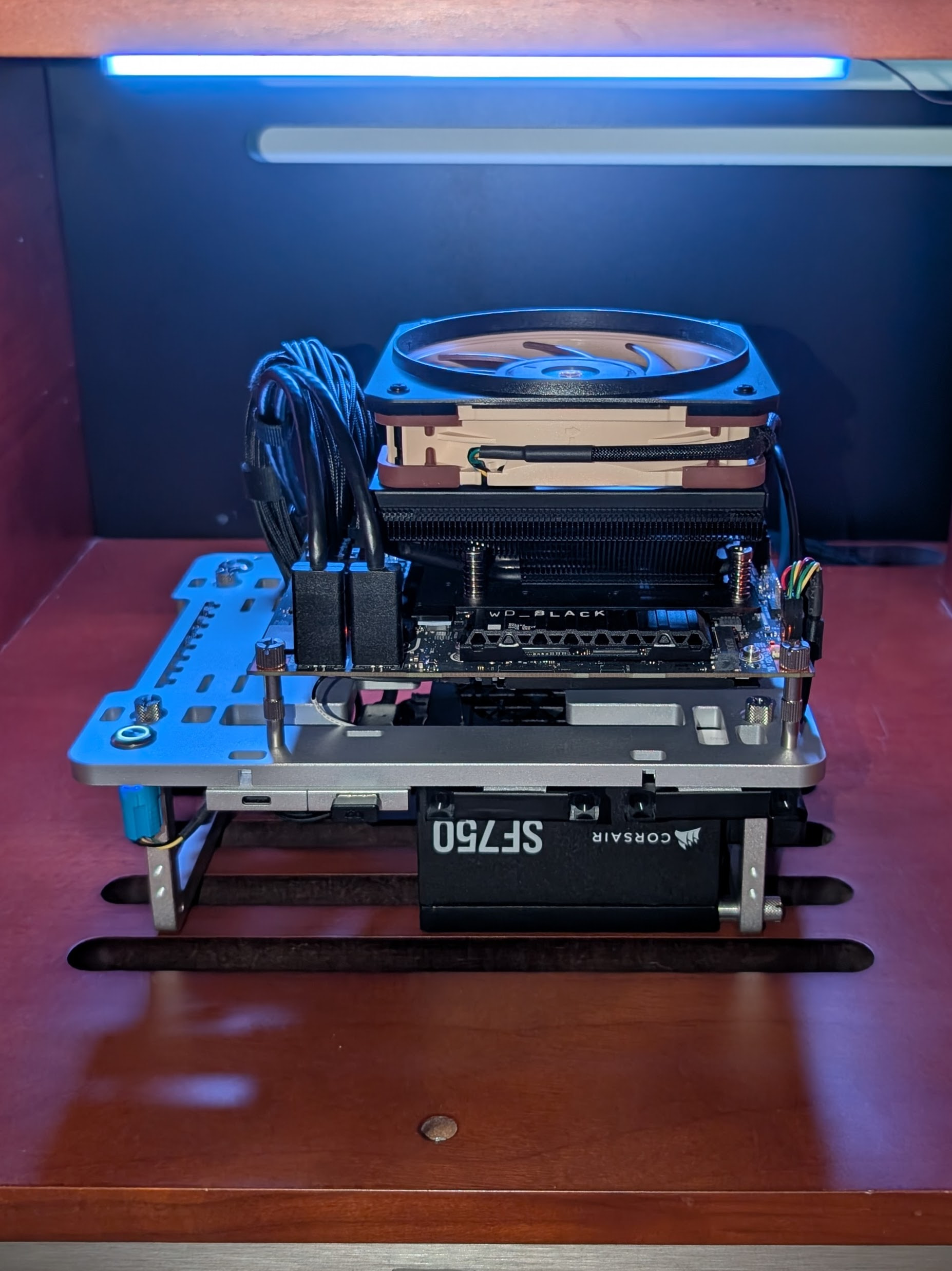
Beta release of the Windows driver for ARGB control on Framework Desktop
This is a beta version of the driver. The functionality is implemented but performance and stability are not optimized yet. We provide it as an early pre-release for curious users and to show what the ARGB connector is capable of.
Future milestones include open source release of the code, WHQL certification by Microsoft and seamless installation through Windows Update.
Downloads
| Download Link | SHA256 |
|---|---|
| framework_win_argb_Release_v0.0.0.3.zip | 9b674d26bf941265ccef3d25633d74a7aee78f50bef506cee858c0364d43b2e5 |
Instructions for Windows Installer
Installation
- Extract the ZIP file
- Open a Terminal as admin
- Execute install command “Installer.exe install”
Uninstallation
Method 1:
- Open the Device Manager
- Right-click “Framework ARGB Device” under “Human Interface Devices”
- Click “Uninstall Device” and check “Attempt to remove the driver for this device.”
- Click Uninstall
Method 2:
- Open a Terminal as admin
- Execute install command “Installer.exe uninstall”
After installing this driver, you can control devices connected to the ARGB header on Framework Desktop using the Dynamic Lighting settings in Windows as well as through other applications that implement the same interface. Note that this driver is set up to control the RGB fan that we offer as an option in the Framework Desktop configurator: Cooler Master CPU Fan - Mobius 120p ARGB, which has 8 LEDs in circular arrangement.
Using Dynamic Lighting
In Windows Settings => Personalization => Dynamic Lighting you can control devices connected to the ARGB header. You can choose colors and effects to use with your RGB device.
You can see the full instructions from Microsoft here: Control Dynamic Lighting Devices in Windows - Microsoft Support
After you install the driver you will see a Windows notification:


Other applications
This driver implements a HID device with support for the “Lighting And IlluminationPage” for the ARGB connector on the Framework Desktop.
Applications/Drivers that can interface with this type of HID device can control the connected LEDs. Additionally Windows has a “Dynamic Lighting” API that can be controlled via Windows settings and that third party applications can interact with.
Windows takes over the HID interface, so applications will have to use the Windows UWP API.
Customization (advanced)
If you’d like to use this interface with devices other than the Cooler Master ARGB fan or other 8-LED fans, you’ll need to perform registry modifications.
To customize the configuration, set/edit the following registry entries.
They are all under: HKEY_LOCAL_MACHINE\SYSTEM\CurrentControlSet\Enum\ROOT\HIDCLASS\0000\Device Parameters
(0000 might be 0001 or higher, edit the highest one)
After adding/changing the registry entries, you need to reboot the system to make sure the driver and the Windows LampArray subsystem get properly reinitialized.
| Name | Type | Explanation |
|---|---|---|
| ReadFromRegistry | DWORD | If 1, the other values are read |
| LedCount | DWORD | How many LEDs in total |
| LedArrangement | DWORD | How the LEDs are arranged |
LedArrangement can have the following values:
- 0: Circular, layers of 8 (e.g. when 16 LEDs in total, two layers of 8 LEDs)
- 1: Circular, single layer
- 2: Linear (e.g. LED strip)
- 3: Square Matrix (works best with a square number of LEDs)
For example to control just 4 LEDs on the fan:
sudo reg add "HKEY_LOCAL_MACHINE\SYSTEM\CurrentControlSet\Enum\ROOT\HIDCLASS\0000\Device Parameters" /v ReadFromRegistry /t REG_DWORD /d 1

sudo reg add "HKEY_LOCAL_MACHINE\SYSTEM\CurrentControlSet\Enum\ROOT\HIDCLASS\0000\Device Parameters" /v LedCount /t REG_DWORD /d 8

sudo reg add "HKEY_LOCAL_MACHINE\SYSTEM\CurrentControlSet\Enum\ROOT\HIDCLASS\0000\Device Parameters" /v LedArrangement /t REG_DWORD /d 0