[SOLVED] An Adventure In Mitigating Throttling

My Framework 16 has an overheating issue, and Framework support recommended that I resolve it by ordering a new motherboard as I am out of warranty. As far as I’m concerned, that gives me leave for some more creative modifications to the cooling solution. I’ve ordered the parts to do the PTM sandwich mod on a fresh heatsink, but I’d also like to continue exploring other options as well.

It seems like my overheating components may not always be the cpu/gpu processor themselves (although sometimes it is), but sometimes is other components after a long enough heat soak. (e.g. cpu/gpu temps are 80c/65, but I’m thermal throttling). I was thinking of trying to mitigate this by adding insulating foam (or something similar) onto the heatpipe so it doesn’t put as much heat into the interior of the chassis. Has anyone here ever done something similar? If so, what were the results? Also, does anyone happen to recall what thickness the foam on the keyboard deflection kit is?

My Framework is at a very special thermal threshold where very small improvements to the system can result in drastic changes in performance… making it really easy to test whether a minor change improves/worses/doesn’t affect performance.

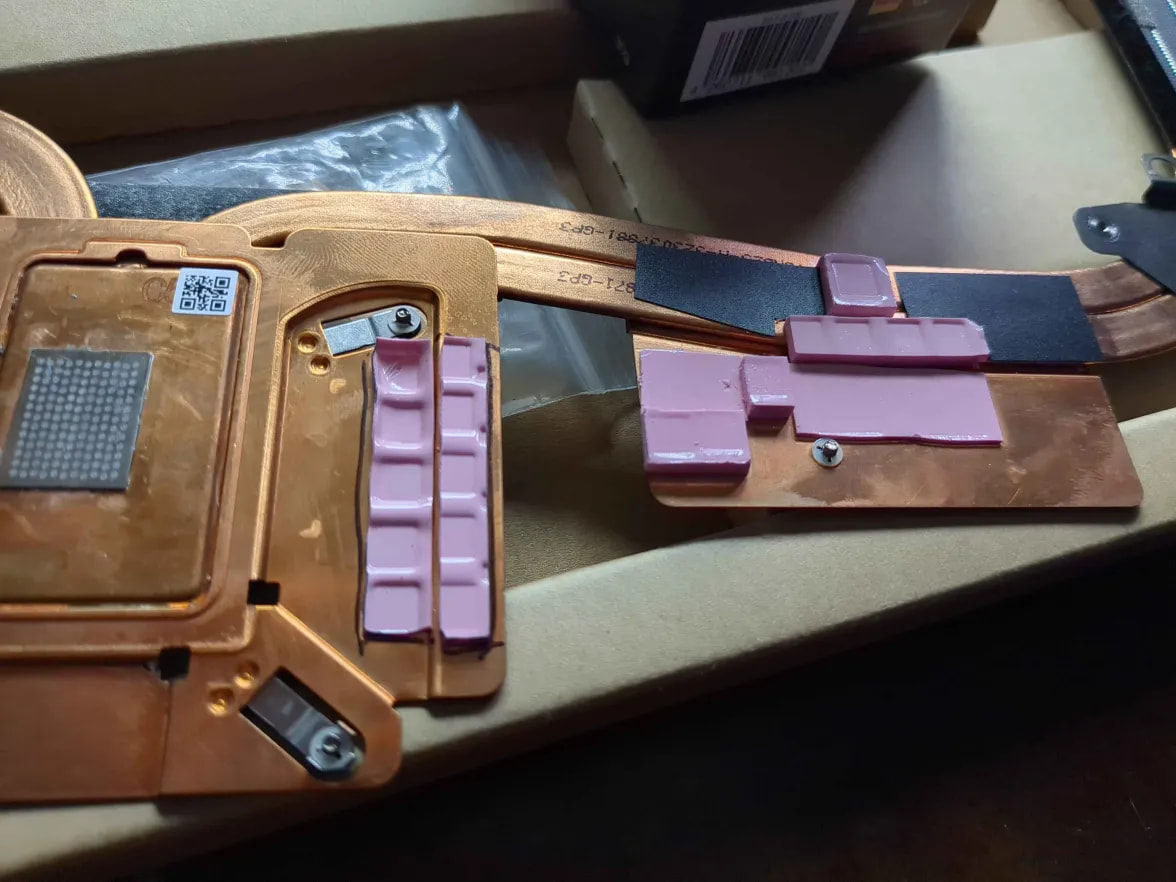
Additionally, I’ve removed my heatsink twice now and noticed that there are thermal pads under this component. What are the chances that those thermal pads are no longer making good contact? I could theoretically replace those pads or apply paste to them to increase performance. If anyone knows what component is under there, I’d love to know (VRM’s perhaps?), because then I may be able to look at it’s temperature readings if it has any.

you should not put insulating foam in a laptop.

”Putting insulating foam inside a laptop can cause severe damage and is generally considered a terrible idea. Modern laptops are designed to manage heat through precise, engineered airflow, and filling the case with foam destroys this system.”

So avoid doing soo!

Even if you’re planing to put it around heatsink/plate it is a bad idea. Since it would trap the heat twice as much and cause laptop to overheat 2x more.

You can thought use thermal putty or w.e it it’s called, it’s like a thick guey stuff you can apply around components instead of thermal pads or thermal paste. Some gaming laptop has it like MSI does it on other compontents that aren’t cpu/gpu.

This reads kind of like an AI prompt response, is that what you’re quoting?

Also, I think there’s been a misunderstanding. I don’t want to fill the interior with foam, I’m just considering adding a small amount of it to the heatpipe, like a bunch of keyboard deflection stickers, to mitigate the CPU heating the misc. components on the inside.

well you shouldn’t add any insulating foam anywhere in laptop since it causes more heat.

Instead use thermal putty stuff between plate and component to provide more heat disipation.

Update: About insulating foam, i might know what you’re referring to now, you mean that soft sponge type of foam that they some times use to isolate airflow between fan and heatsink fins? If so then i get it now, at first i thought you meant more like a goey foam that you litterally spray onto heatsink and it foams up and kinda insulate the thing so heat remains within motherboard and heatsink. But if you mean that than sponge foam then it’s still a huge no, never use goey foam that expands and insulates.

Instead use something like this:

3352541_43ebbd8e12c6.jpg (915×900)

this is a thermal putty type, there is different kinds of putty. Find one suitable for correct components and apply it between heatsink plate and component so it touches both properly than maybe the thermal pad doesn’t touch. That way it will disapate the heat from component into heatsink pipes and out where fan blows.

1 Like

I too would be a bit wary of this approach, though I guarantee that is an organic thought from genuine human tissue. I get the theoretical idea, but I think practically it will simply result in raising CPU temps and possibly not even noticeably reducing overall ambient internal temps, as it’ll just leak out further down the heat pipe. I imagine you’d have to almost fully insulate the cooling system all the way to the fan to get any real result, at which point you’re almost surely going to be exceeding the cooling system’s capabilities and run into CPU throttling…though I suppose if the PTM works well enough, I’m pretty sure I’ve seen reports of users unable to hit 100°C even at max power so maybe there is enough margin? Either way, I think if you can try this out in a fully, or at least mostly reversible manner, I’d love to see what you find!

Sounds like what it really might need is a general case fan. I’ve seen some pretty tiny fans in my adventures of disassembling electronics, I wonder if there’s just enough space to put one in there and somewhere to wire it to. Perhaps even more destructive would be adding more case ventilation by drilling holes or something, but then you’d probably want to add some sort of screen to minimize dust and dirt intrusion, somewhat reducing flow. How much are new cases?

1 Like

The title is “An Adventure In Troubleshooting Overheating” but then you don’t actually go into any details. I.e. what all the temperature sensors are showing. Which ones are showing too high readings etc.
Things that have temperature sensing:

  1. CPU
  2. GPU
  3. RAM
  4. EC

That’s a fair criticism. I made this post early so I could get feedback on things like the foam insulation idea and I’m just starting my “adventure” into modifications for improving cooling, but I’ll provide that data context now (which has so far been recorded across various other threads on the forums leading up to now).

My CPU is able to mostly sustain ~45W of power draw, however after about 30 minutes of heavy gaming (GPU pulling ~100W) either my CPU or my GPU will begin to throttle back and forth from “normal operating clock speeds” to ~500mhz, resulting in very noticeable microstutters in-game. I worked with framework support to troubleshoot this, and they recommended I replace the motherboard. Yesterday while playing Expedition 33, my GPU was at 65c and my CPU was at ~80c and 30 minutes in I began to get the microstutters. Temperature readings didn’t change, but when it was downclocking mangohud would report throttling due to power. When I play BF6, it’s usually the CPU that stutters down to 500ish mhz, and the entire time the CPU is sitting at 100c. These stutters also need a heat-soak to set in, so for the first 30 minutes even though the CPU is at 100c the whole time, the performance is fine. When BF trips, I get PROCHOT_EXT and PROCHOT_HW flags thrown, but not PROCHOT_CPU.

The disconnect between GPU/CPU processors hitting threshold temperatures and when I observe the performance impacts suggests to me that it’s not the overheating of the processing units themselves, but rather another monitored component, such as the VRMs, though I don’t know for sure what component that would be.

I’ve not looked at ram temps yet. Does the EC have it’s own temp I can track?

The “Stutter” is not always caused by hot temperature. It can be caused by other things.
So, is the “overheating” in the title an assumption?
I ask, because it reads that after you got the new mainboard, the GPU=65 C, CPU=80 C. So, that does not appear to be a temp problem to me.
Other things that can cause stutter:

  1. RAM too hot.
  2. Battery being charged during a game. That was diagnosed in the very long battery flipping thread.

On linux one can use “sensors” to see the RAM / spd temps.
On linux one can use “ectool chargecontrol” to see if charging or not. “NORMAL” == charging. “IDLE” == not charging.

I don’t know what to use on windows.

Not an assumption, I spent about 2 weeks going back and forth with FW support collecting sensor data under various conditions and recreating the issue. There are other sensors that reach 100c even if the GPU/CPU avg core temps don’t reach 100c, and I can reliably accelerate the time it takes to fail by reducing air flow.

Definitely could be ram getting too hot, I really want to get ram temp stats but I keep forgetting to check that.

Device was not charging in any of these tests.

Any chance someone could tell me what’s under this portion of the heatsink? I’m guessing some sort of power regulation.


does this image answer you question? it is part of the liquid metal replacement guide https://d3t0tbmlie281e.cloudfront.net/igi/framework/5fWVM1RMwqIfLl52.full

1 Like

TLDR at the bottom.

I’ve done some additional testing and further narrowed down the overheating issue I encounter. The failure mode I see is that when playing Battlefield 6 for >15 minutes the GPU’s power usage will alternate between very low and very high values, this results in an a consistent microstutter about once a second that’s very noticable, and validated with the in-game report graphs. Over the weekend, I tested the following configurations:

dGPU not installed (using fan shell): CPU temp ~75c (no microstutters observed)
dGPU installed, game running on iGPU: CPU temp ~85c (no microstutters observed)
dGPU installed, game running on dGPU: CPU temp 92-100c (microstutters observed)

It would take almost exactly 15 minutes for my system to encounter the microstutter issue from a cold-start. This was very reproducible, I probably recreated it this way ~10 times. Noticing that CPU temp’s increase with increasing interaction of the dGPU, I decided to try some simple modifications to restrict hot air flow from dGPU to CPU. I did this by adding foam seals around safe points on the expansion bay that didn’t interact with anything it shouldn’t IMO.


Restricting the airflow from dGPU to CPU side increased the time it takes to encounter microstutters by ~5 minutes (33%), but did not stop it all together.

Interestingly, I do not see a performance difference between dGPU and no dGPU as when I ran cinebench without the dGPU I got the same score.

If I strip the top of the laptop down such that there is no midplate and the motherboard is exposed while I am experiencing the overheating-microstutter, the microstutter will go away a couple moments after the airflow has increased.

My replacement heat sink arrived yesterday, and I installed it unmodified. I had a theory that when I removed and reinstalled the heatsink last time to do my LM → PTM swap, the pink thermal pads (under the metal plates I highlighted above in my previous post) were not created as good of a thermal connection to what I assume are some power regulation component. The thermal pads stayed deformed in the shape of those components, and the basis of my theory was that unless I mounted it back exactly how it was mounted before, there would be tiny air gaps, which could explain that being a hot spot in the thermal imaging. This however, did not resolve my microstutter issue, and I’m well aware that the hot-spot on the thermal image could also be explained by the fact that the heatsink at that location is just a copper plate and not an actual heat pipe, which is less effective at transferring energy.

Side note: I also noticed that my dGPU screws were very loose. One of them was so loose, that I’m not sure it was even doing anything. I tightened them down to finger tight, but it didn’t seem to affect performance in any way.

Second side note: replacement heatsinks do not ship with a PTM pad. I had ordered 3x extras so I could do multiple experiments, but after finding out that the heat sink doesn’t include one and accidentally destroying the first one I used, I now only have 1 left.

Third side note: My microstutters does not appear to coincide with any temperature sensor I’ve been able to monitor on HWInfo 64, assuming that 100c is the threshold to be looking for. If there are other arbitrary thresholds, I’m liking missing it.


TL;DR;
Installing a dGPU increases the CPU temperature, and using said dGPU further increases CPU temperature. Replacing my heatsink did not resolve my heat-soaked microstutters, but restricting dGPU side ↔ CPU side airflow does seem to help avoid the stutter for longer.

Given that my CPU was running at 75c with the dGPU uninstalled, I’ve become less confident that doing the copper shim mod will result in temperature drops, and it seems to likely be more air-flow bottlenecked as the cpu heatsink gets less airflow when the dGPU is taking most of it.

You mentioned the throttle can be avoided with keeping the keyboard deck open for more airflow. Have you tried a cooling pad?

The discussion about insulating the keyboard aside, if you find the cooling pad makes a difference, you could try getting some normal thermal pads and seeing if you can lay some of them under the motherboard, opposite locations where VRMs or the EC may be, basically thermally connect the main chassis to the heat sources. It’ll make the laptop bottom really hot in use, but it might also make any cooling pad even more effective.

Also, if you plan to be fiddling with the internals and heatsinks for a while, I’d recommend getting just any tube of thermal paste (NH-1, thermal grizzly, arctic, whatever). In short term, most thermal paste will be equivalent to PTM anyway, it’s pump out that causes dropping performance. If you’re going to be testing things/repasting constantly, I’d save the PTM for when you’re just about satisfied and done, since it’s harder to reuse/clean and a better long term solution.

I did recently do the research to find a good cooling pad, and at the time was interested in using it for noise reduction. It (greatly) increased the noise, and thus didn’t fit my needs at that time. I ended up returning it, which I now regret, but I am quite curious if it would help with this issue. I didn’t have a 240W PSU when I tested it, and I don’t think my overheating issue was noticable when I wasn’t able to run full-throttle indefinitely.

For anyone who’s curious, this is the best pad you can get as far as my research was able to determine: Amazon.com: llano Gaming Laptop Cooler, V12 Laptop Cooling Pad Stand with 5.5inch Fan, Fast Cooling Computer Laptop 15.6-21in, Adjustable Speed, Touch Control, 3-Port USB A, A Mouse Pad Included : Electronics

Ultimately though, I’d like to keep the laptop as a independent unit capable of handling itself but I do consider a cooling pad to be a decent backup option. The bottom of my laptop already get’s too hot to touch, so I imagine adding paste would only further improve how much cooling is available that way.

Your suggestion about getting some regular thermal paste isn’t a bad idea, I might give that a go for my testing! It’s been a while since I looked at the differences between the PTM and regular goop. Fortunately, I already ordered some for a desktop that didn’t end up needing it, and I’ve also got some of Thermal Grizzly’s paste that I might try using to help the VRM’s.

I wouldn’t do paste on the motherboard to chassis section, too messy. More like the stuff you see on the VRMs or SSDs, you can get those on amazon or microcenter etc. It’ll be much easier to clean and easily removable.

The 16 already has a bit of a foot from the GPU module, but as an easy alternative, even propping the back up with a book to ensure clear airflow to the bottom vents might help. It could at least give a hint if the cooling pad would contribute much.

Thanks for the suggestions! I’ve tested propping it up in the past and I’ve found that it unfortunately has no measurable impact, at least on my machine.

Alright, I’ve done a few things since my last post and made some learnings as well.

  1. I did the CPU copper shim mod and dropped my temperature from 100c to 85c under heavy load, but this did not resolve my throttling.
  2. I repasted my dGPU. This dropped my hotspot temp from 95c to 85c, but did not resolve my throttling.
  3. I (re)bought that llano cooler I cited above to validate my assumption that it would resolve my throttling issue. It did, but I’d prefer not to use it. This at least provides further validation that the throttling I’m seeing is a result of something getting hot.
  4. I collected some data, and at the exact moment I run into my throttling issue, the iGPU (yes, the 780m) flags itself as thermal throttling.
    Here is a plot of my RX 7700s’ power draw over time. Where the power draw dips to ~40W from 90+W is when I am experience performance throttling. The graph color indicates whether or not the AMD 780m iGPU is thermal throttling. As a data scientest by day… I can say this is a very strong relationship. It would appear to me that the iGPU thermal throttling is the source of my issue.

But why is it thermal throttling? Let’s take a look at it’s reported temperature:

Unfortunately, the iGPU does not appear to report a “hotspot” temperature like the 7700s, so I have to use just the regular temperature value. Given that though, the gpu seems to stay below 75c, which seems quite cool for a GPU (but warm for something that’s supposedly not doing any real work). On another thread, there is some discussion of overheating ram. Given that the iGPU uses the cpu ram, if that got too hot I could see it being possible that it would result in a iGPU thermal throttle, so here’s what the 2 ram stick temps look like:


One thing that sticks out to me is that the hottest stick of ram seems to get real close to 75c and then the throttling ends around the time it dips below 70c. If we look at the first plot, we can see the dGPU power recover, as did real-world framerate, but the iGPU thermal throttle flag is still set. This is a little confuzing to me if the iGPU thermal throttle is the source of the issue.

For completion I’ll also include a full-chart of all temps:


Question for the community
Do you know if ram temps can lead to an iGPU thermal throttle?

1 Like

I’ve spun this another way and even though I was watching STAPM limits live while gaming, it would appear I missed a critical moment.

Showing a graph of STAPM Limits clearly shows that it hits 100% and then drops, there’s even another instance of this happening earlier on that I didn’t notice because it was so short in duration.


Does this seem like a more reasonable culprit?

That’s some interesting data.

Not sure on your Ram question. I know in the past, running around the Throttlestop forum in the old days, tweaking Intel chips in laptops, Intel igpu/CPU would throttle if a bdprochot flag tripped and the setting wasn’t disabled through throttlestop.

Intel used the bdprochot as a catch-all for anything else on the motherboard with a temp sensor (may have depended on manufacturer settings too), so many thermally soaked chassis would eventually trigger it even if the CPU temps were fine.

I’m not as familiar with how AMD does it. I know in some of the older laptop chips they used what they called a ‘skin’ temperature throttle, STAPM or something. It was intended to keep surface temps on 2-1s and tablet like devices user friendly, but all it really did was mess with potentially good performance I say :stuck_out_tongue:

STAPM was sus though, because it caused throttle at a very low temp for chips, like 80*, but high temps can cause it to act faster or refuse to unlock until you cooled the chassis itself down.

Have you tried using universal x86 tuning as well? I don’t remember if anyone ever found a way to completely disable STAPM, but there was some thoughts ryzen adj could have some settings for it. I dunno if the fan control apps power settings would cover it, but universal tuning has a lot more power adjustment settings you could fool around with

By chance, does anyone know how the STAPM value is calculated/what temperature sensor’s it’s tied to, and where those are located?

Update: It looks like STAPM is measured in W not temperature, and is a calculation of power draw over time. Though, I know if I keep the device colder the STAPM limit doesn’t kick in, so there’s gotta be a thermal component to the calculation somewhere.

I did some quick and dirty correlations, and it looks like my STAPM values are being mostly controlled by my dGPU hotspot temperature, a.k.a. if i can get my hotspot down further, then it may alleviate my STAPM bottleneck.

I’ve reached out to support asking for their opinion on resolving a STAPM limit.